A synthesized fixture clip
The C1 walkthrough used to be the only one on this site whose screenshots were captured by hand — XCUITest had no way to drive against a video-bearing fixture because TestFixtures didn't seed any media files. That blocker is gone now: the coachReview scenario adds a sub-slice that synthesizes a placeholder .mov at install time via AVAssetWriter (5 seconds × 1280×720 × solid teal frames, ~10 KB), wires an ArchivedAnchor pointing at it, and registers it with the coordinator. The walkthrough now auto-regenerates on each test run — UI drift trips the test the same way it does everywhere else on this site.
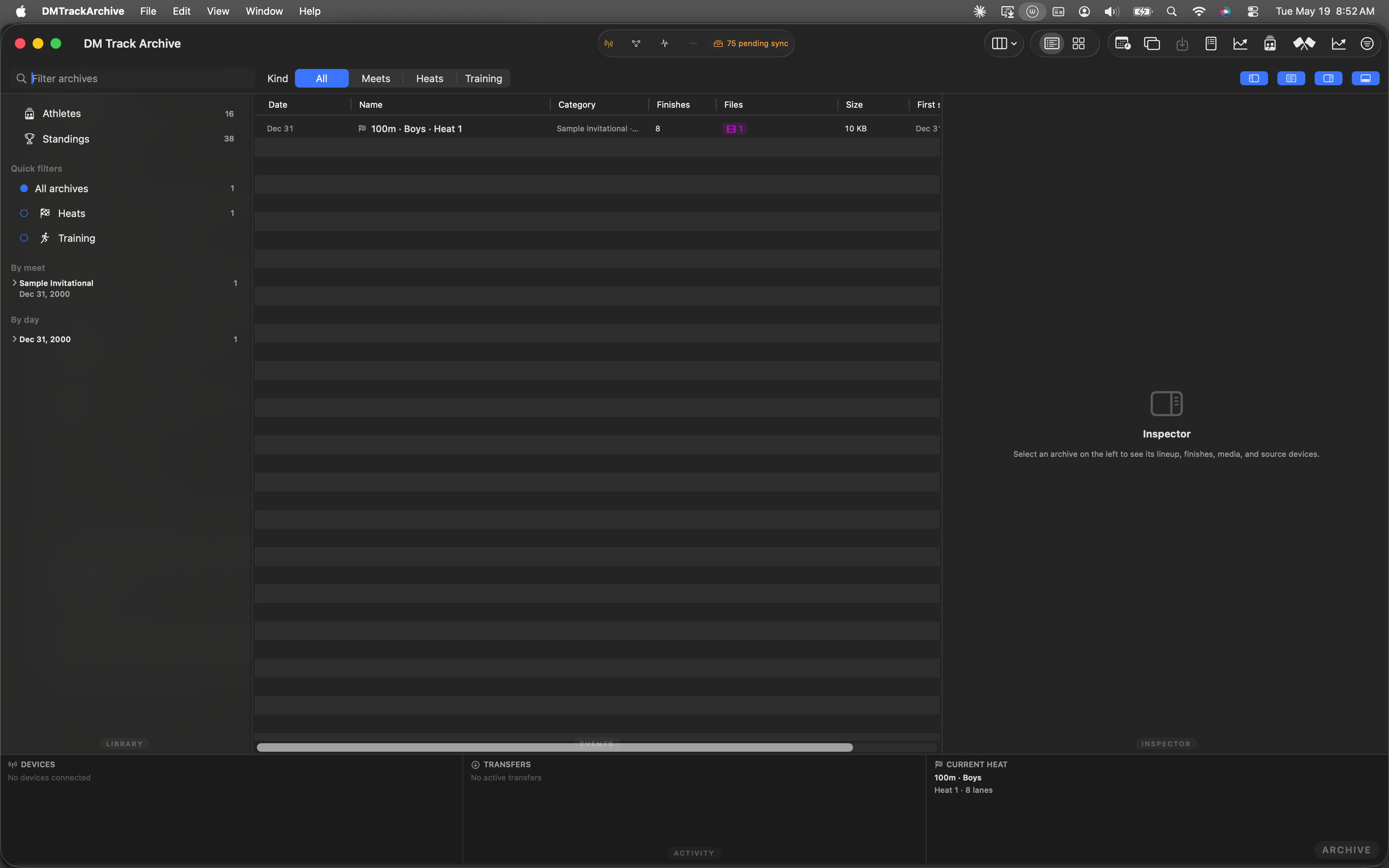
Launch state. Live Meet shows the Sample Invitational; the coachReview-scenario fixture has registered a synthetic heat anchor with a placeholder .mov ready to play.
Open the Archive window, find the heat
Coach Review lives inside the DM Track Archive window (Window menu → DM Track Archive). The center pane's table lists every archived heat across every meet; the fixture's demo heat reads 100m · Boys · Heat 1 with 8 finishes and a 10 KB clip.
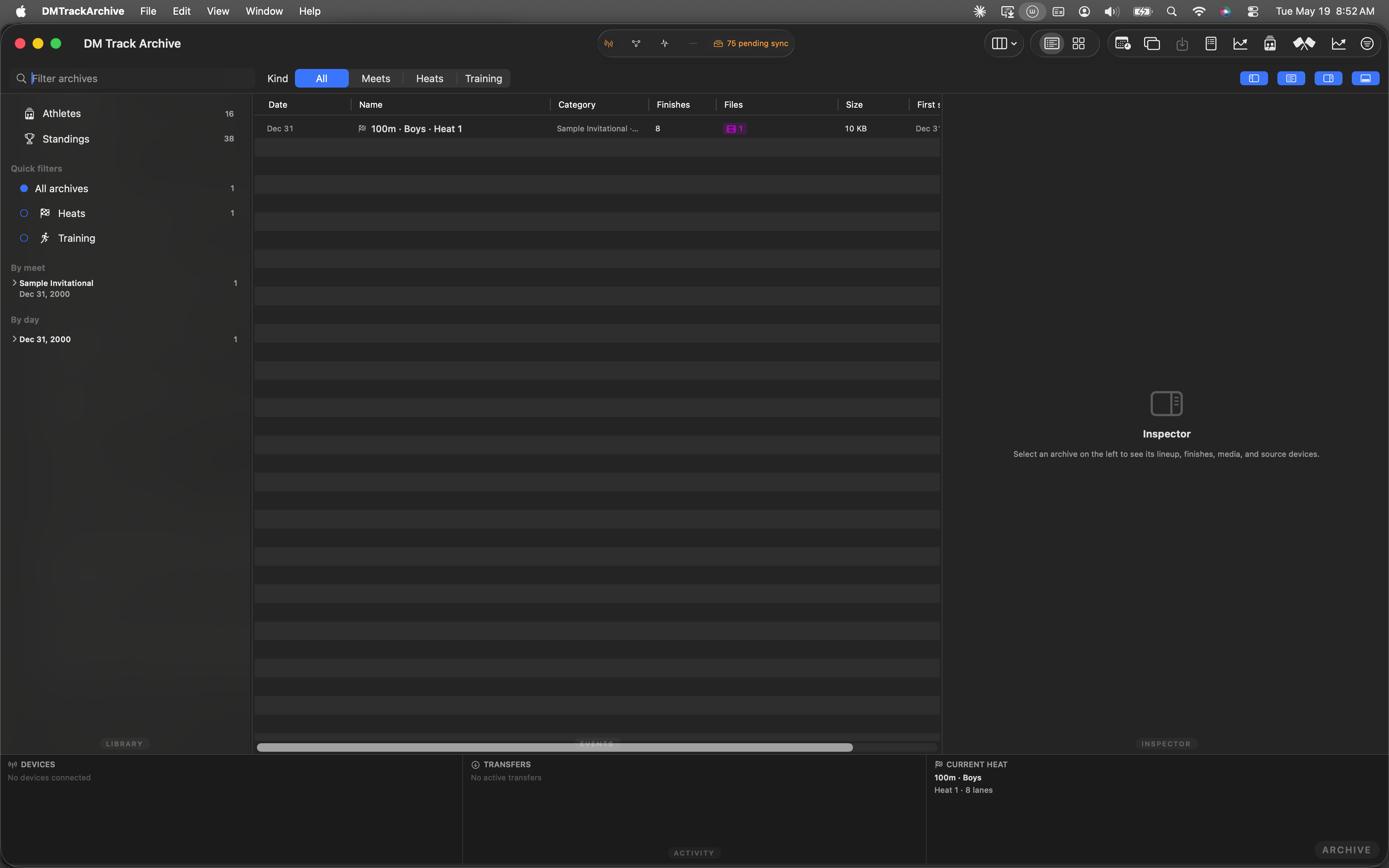
Center table with the demo heat hover-highlighted. Click to load it.
Detail view loads + video plays
Click the row. The inspector pane mounts ArchiveDetailView — top-trailing timeline strip showing the clip's bar against Demo Camera, Full Recordings section in the center, player surface bottom-right with the standard transport controls underneath. The window title rewrites to the anchor's display name. AVPlayer starts loading frames as soon as the surface mounts; the first one paints within ~500 ms.
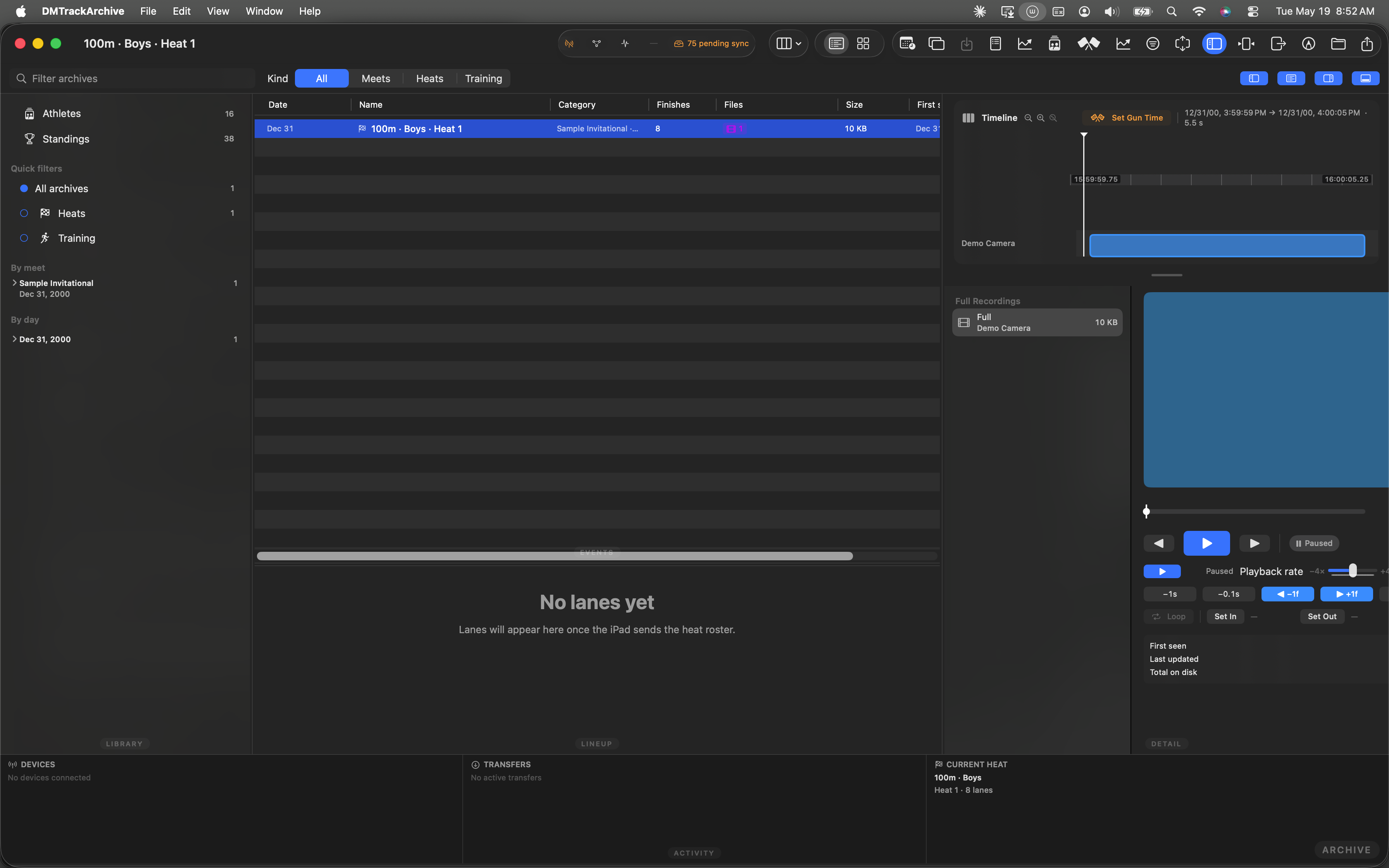
Heat selected (blue row), title bar updated, detail view mounted. Teal player surface in the bottom-right is the fixture clip's first frame.
The Annotate toolbar button
The window's toolbar gains the Annotate button (pencil-tip-crop-circle icon) once a video-bearing anchor is selected. Hovering shows the standard tooltip; clicking enters annotation mode.
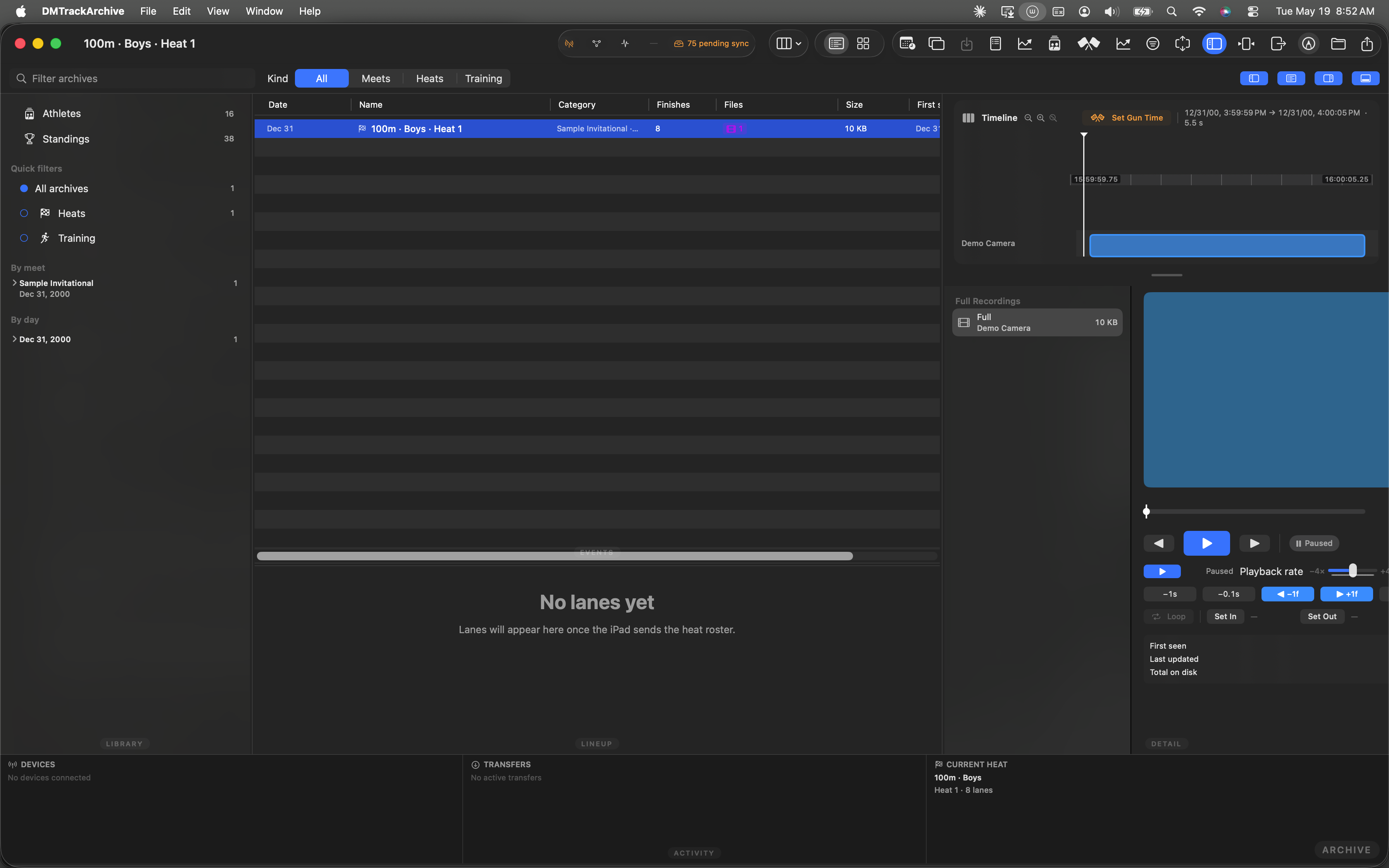
Annotate button hovered (top toolbar). Click to flip the player into annotation mode.
Annotation mode on
Clicking Annotate: the player pauses (if it wasn't already), the floating overlay chrome appears in the top-trailing corner of the player surface (4-color swatch palette + width slider + undo + annotation count), and the canvas overlay becomes drag-receptive. The button switches to its filled "Exit Annotate" state so the toggle is obvious.
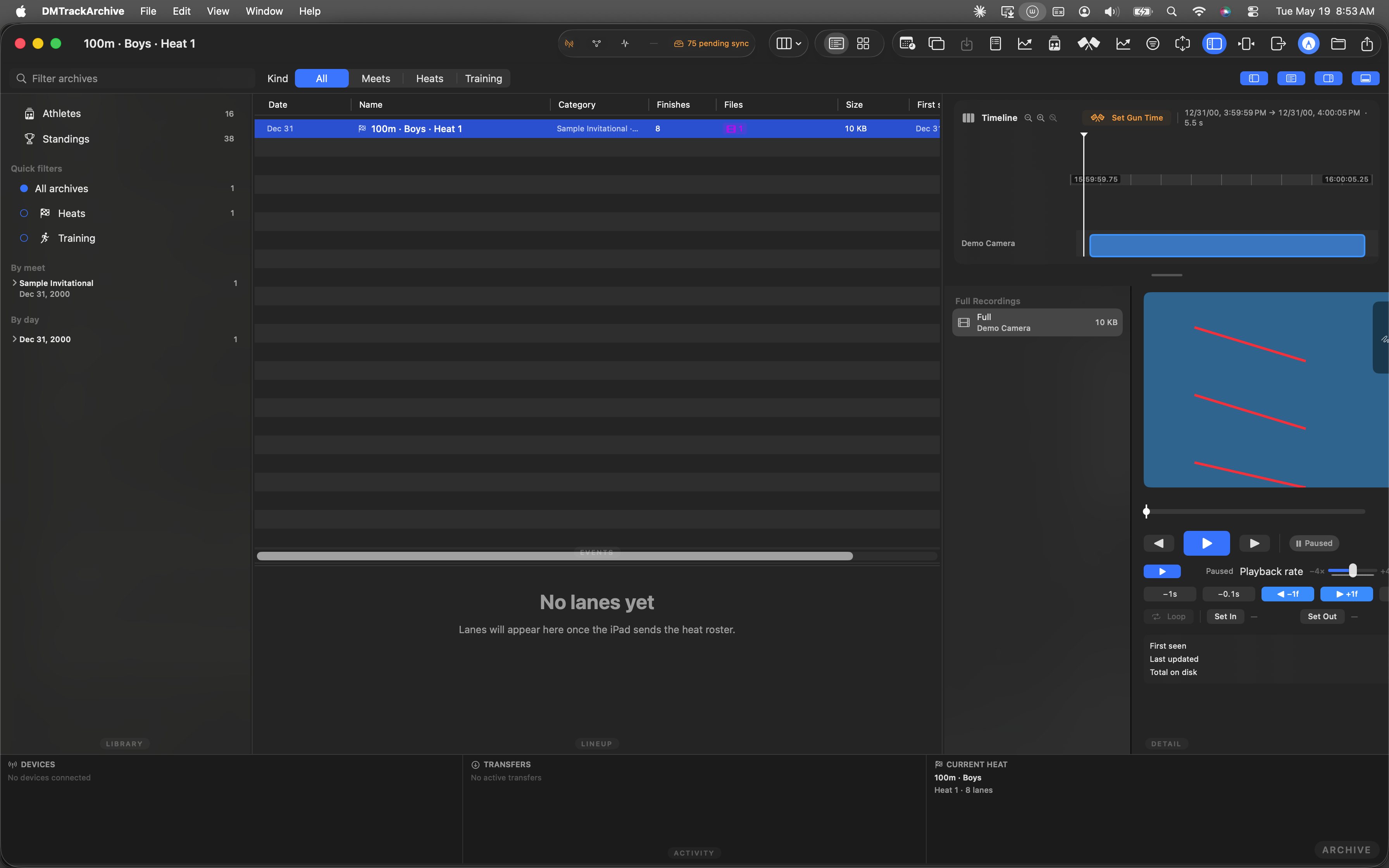
Annotation mode on. Player paused, canvas ready. The overlay chrome at the top-trailing of the player carries the pen palette + width + undo.
Draw strokes on the paused frame
Pick a pen color from the 4-swatch palette (default red), adjust width via the slider, and drag against the player surface to draw. Each stroke commits to the in-memory sidecar on mouse-up; the count chip in the overlay ticks up. The canvas coordinates are stored as normalized [0, 1] floats so strokes re-render at the right place regardless of how the player surface is resized.
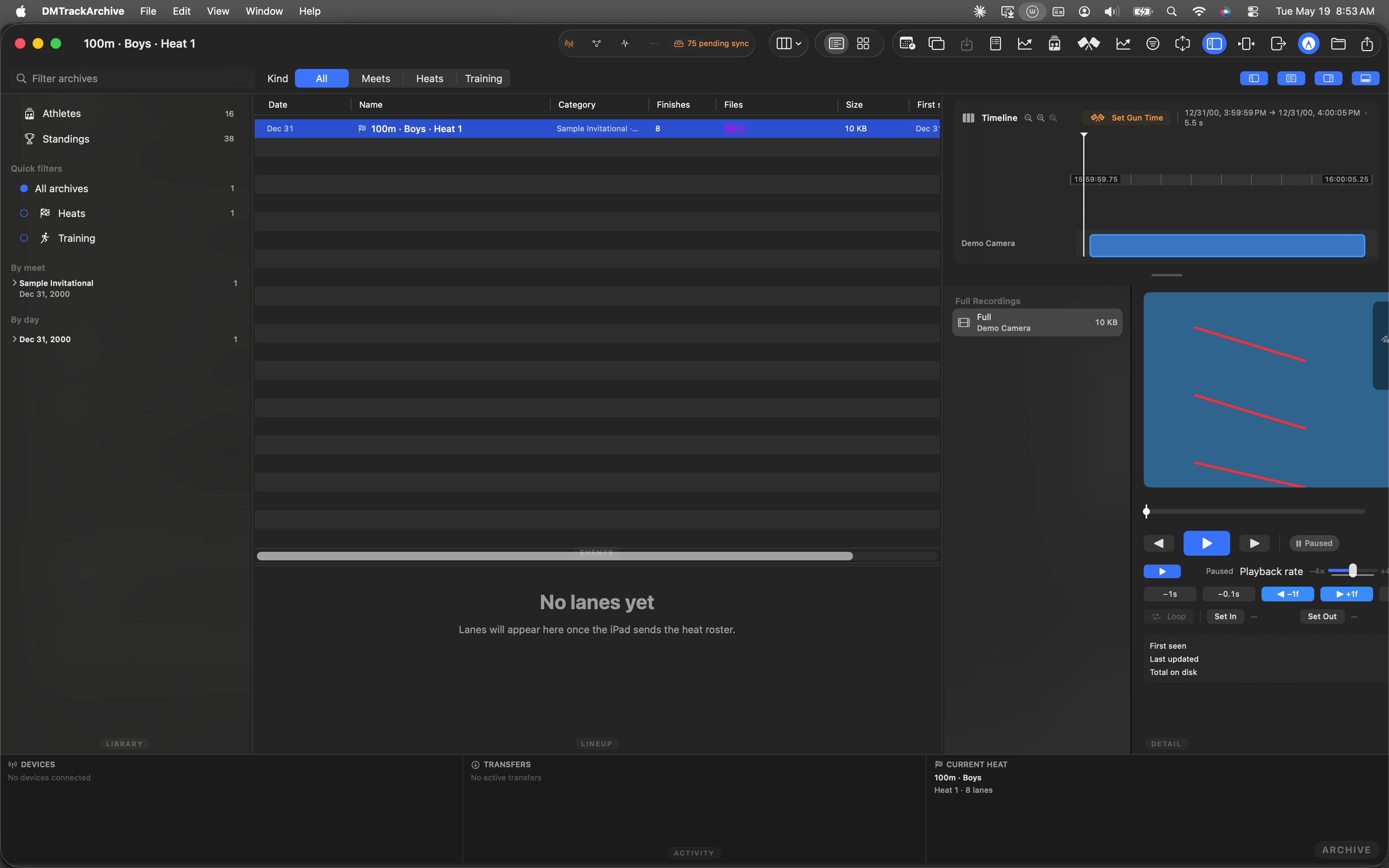
Three short strokes on the paused frame, mid-session. Each is its own committed stroke; the strokes ledger in the overlay's count chip reads 3.
currentTime() in milliseconds at draw time. The sidecar records both the stroke geometry AND the frame it was drawn against. A future surface (C1.3+) can scrub the timeline and only render strokes drawn at the visible frame ±a tolerance.
Strokes persist to disk
A green Saved ✓ banner flashes in the overlay chrome ~1.5 s after each stroke commit. The underlying write goes to <anchor.directory>/coach-notes.json — a Codable CoachReviewSidecar with an array of CoachAnnotation records keyed by stroke ID. The sidecar is read in ArchiveDetailView's .task(id:) on every anchor reopen so strokes round-trip cleanly.
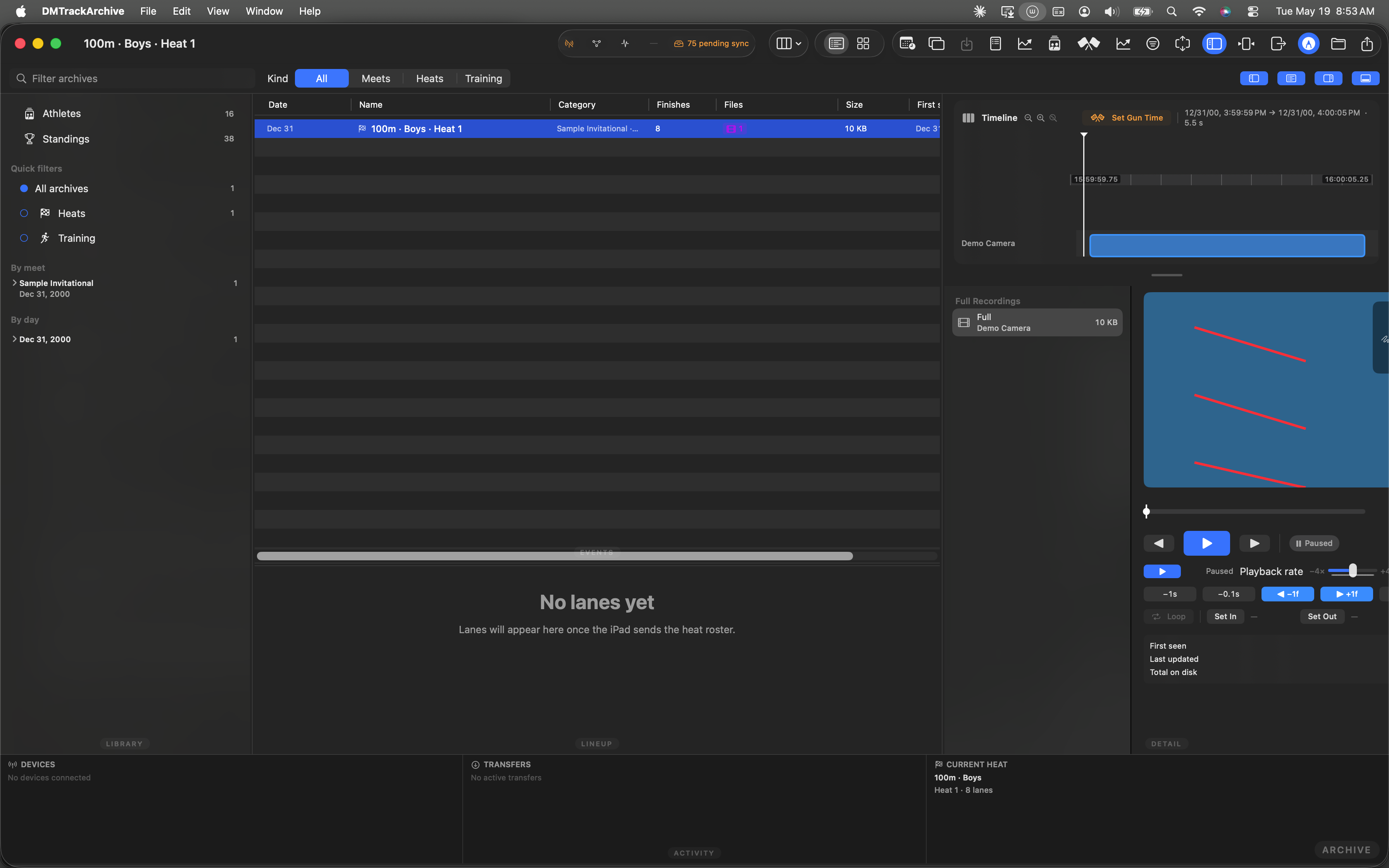
Post-commit. The Saved banner fired + faded; the strokes are now on disk in coach-notes.json next to the .mov.
Reopen the anchor, strokes re-render
Navigate away from the anchor and back, the strokes re-render at exactly the same canvas coordinates and the same frame. Below is the same canvas state captured after the auto-save fired — this is what the operator sees on reopen too.
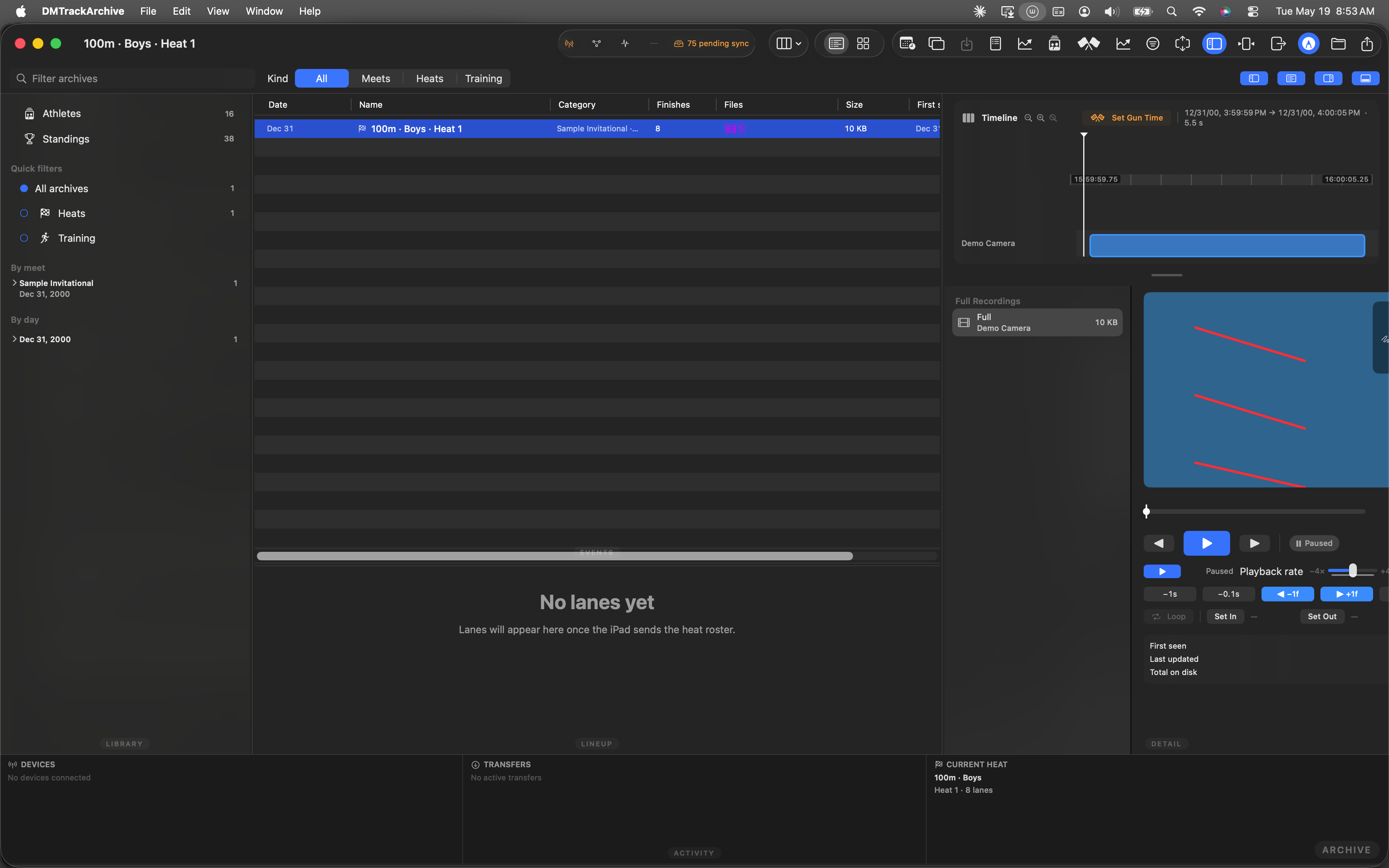
Strokes still visible. The sidecar JSON round-trip preserves stroke geometry, color, width, and frame-time across reopens.
CoachReviewSidecarIO unit-test suite — load + save + round-trip equality on the sidecar JSON. This walkthrough demonstrates that the visual state is preserved; the unit tests prove the disk round-trip.
Exit annotate — strokes replay as the clip plays
Click Annotate a second time to exit. The floating chrome (4-swatch palette + width slider) disappears, the canvas stops accepting drags — but the strokes stay on screen. A new read-only overlay (AnnotationPlaybackOverlay) mounts whenever a sidecar is loaded AND annotation mode is off. It reads the player's current time at 20 Hz and renders strokes whose authored clipTimestampMillis sits within the visibility window from that time. Strokes fade out linearly over 4 seconds once their authored timestamp passes — matching the C1 SPEC's locked decision: "every annotation appears at its bound timestamp and fades out 4 seconds later."
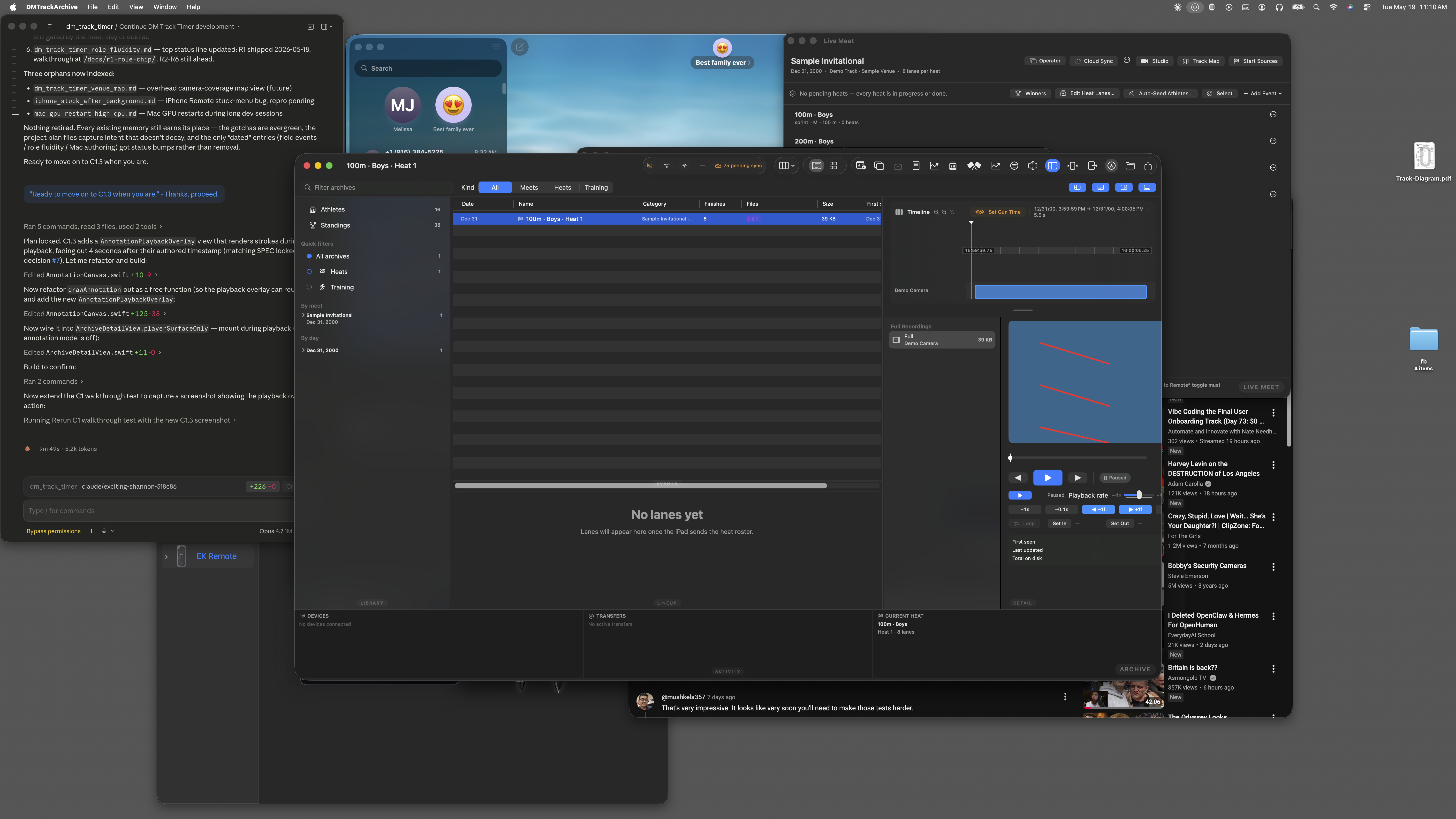
Post-exit. Strokes still visible because the player is paused at the same timestamp they were authored against (delta = 0). Press Play and they'll fade out over the next 4 seconds; scrub backward past their timestamp and they'll disappear (future strokes don't render).
TimelineView(.animation(minimumInterval: 0.05)) wrapping a Canvas. 20 Hz is more than enough for smooth opacity fades at this scale — much slower than the 60 Hz video underneath, but the fade is the only thing that visibly changes per tick. allowsHitTesting(false) on the overlay means clicks always pass through to the player's transport controls underneath.
How the canvas overlays the player layer
- SwiftUI ZStack.
ArchiveDetailView's player column wraps itsPlayerLayerViewin a ZStack withAnnotationCanvasoverlaid on top. Hit-testing on the canvas is gated bycoachReviewMode— off by default, the canvas is invisible + passes all drags through to the player's transport. - Normalized 0...1 coordinates. Stroke points are stored as
CGFloatin the unit square. Renders use the player surface's current frame to project back to pixels. Resize the window, the strokes rescale automatically; no per-zoom recomputation. - Stroke commits on mouse-up. While the drag is in-flight the canvas holds an in-progress stroke that doesn't write to disk. Mouse-up appends to the sidecar's
annotationsarray + triggers an async write tocoach-notes.json. A failed write surfaces an error chip; the next stroke retries. - Sidecar lives next to the .mov. Per-anchor JSON at
<anchor.directory>/coach-notes.json. Anchors that have never been annotated have no sidecar; the loader treats missing file as "empty annotations" with no error. Deleting the .mov via the archive's cleanup path also deletes the sidecar. - Walkthrough is auto-generated. The 8 screenshots above came from
C1CoachReviewWalkthroughTestdriving against the synthesized fixture clip. Earlier this walkthrough was a manual screenshot pass; the auto-pipeline ships 2026-05-19.
What's next on the Coach Review path
C1.3 — Frame-bound stroke rendering: Each stroke captures the frame it was drawn against (already implemented in C1.2's sidecar). C1.3 scrubs the timeline and only renders strokes within ±100 ms of the visible frame — so a stroke drawn at the finish-line crossing doesn't bleed across the whole clip.
C2 — Voice notes: Dictate-to-text against the paused frame, ties into the same sidecar as a sibling VoiceNote record. Useful for "look at his foot plant here" without typing.
C3 — Per-athlete profile attachment: Send a selected annotation (strokes + voice + frame) to the athlete's profile page so the coach review surfaces in the athlete-development context.