A reproducible sample roster
This walkthrough drives against the same synthetic Sample Invitational meet that the W2 awards walkthrough uses, plus a 16-athlete roster the M-series fixture adds. The roster is identical across runs:
- 16 athletes across 3 teams — Lake Forest (6), Branson (5), Marin Christian (5)
- The same Sample Invitational meet structure: 100m, 200m, 4×100m Relay
- No prior race anchors in the fixture, so step 2's archive vocabulary is empty — the walkthrough demonstrates the template path instead, which works on day-one rosters without history.
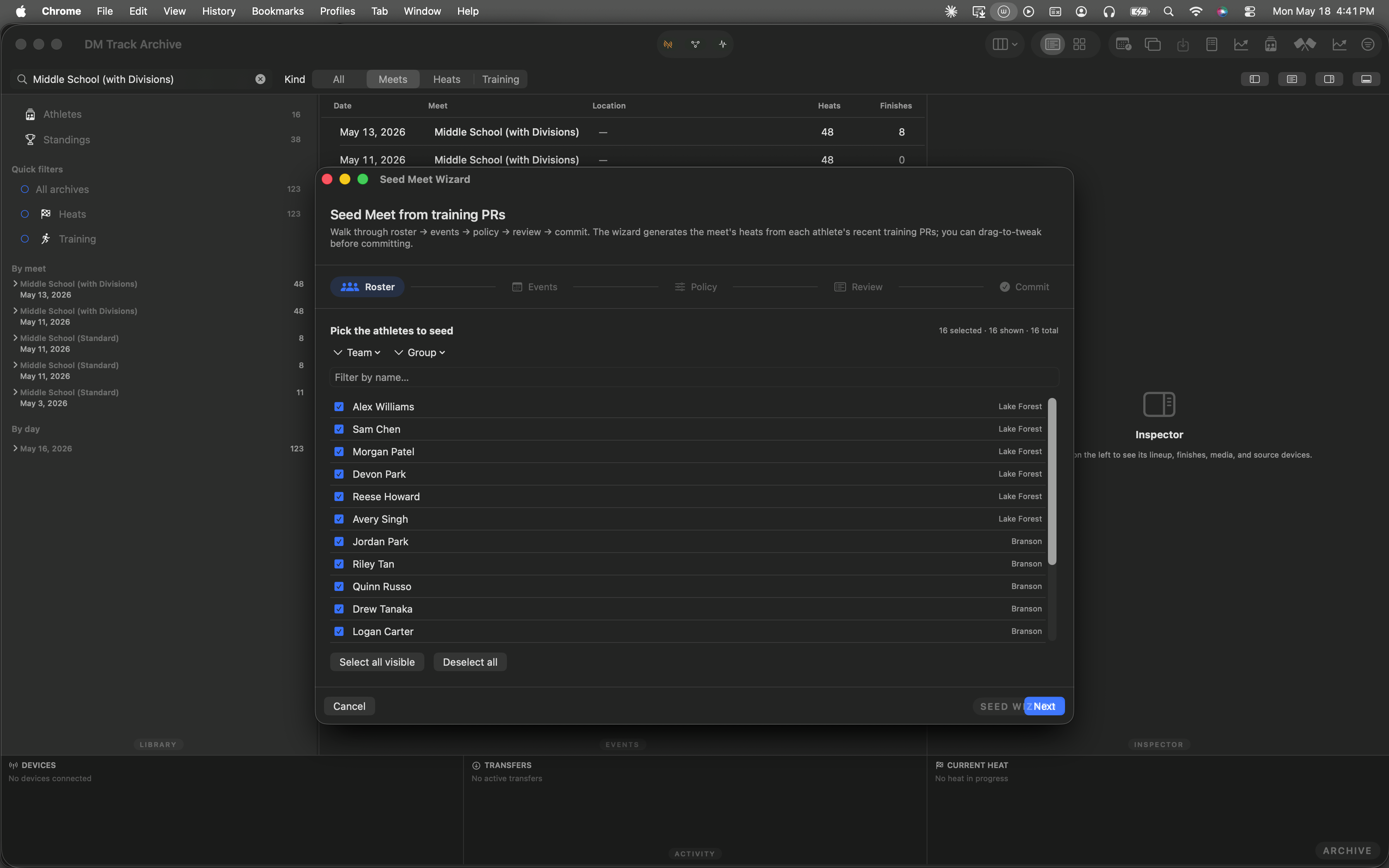
The Mac archive just after launch. The fixture meet shows in the Pending Meets sidebar; the 16-athlete roster is wired into the analytics index.
Open the wizard
The wizard's window scene is registered with id seedMeetWizard and bound to ⌘⇧J. Reach it via the Window menu or the keyboard shortcut — either path opens the same window. Below, the Window menu is open with Seed Meet Wizard highlighted so you can see exactly which entry to click.
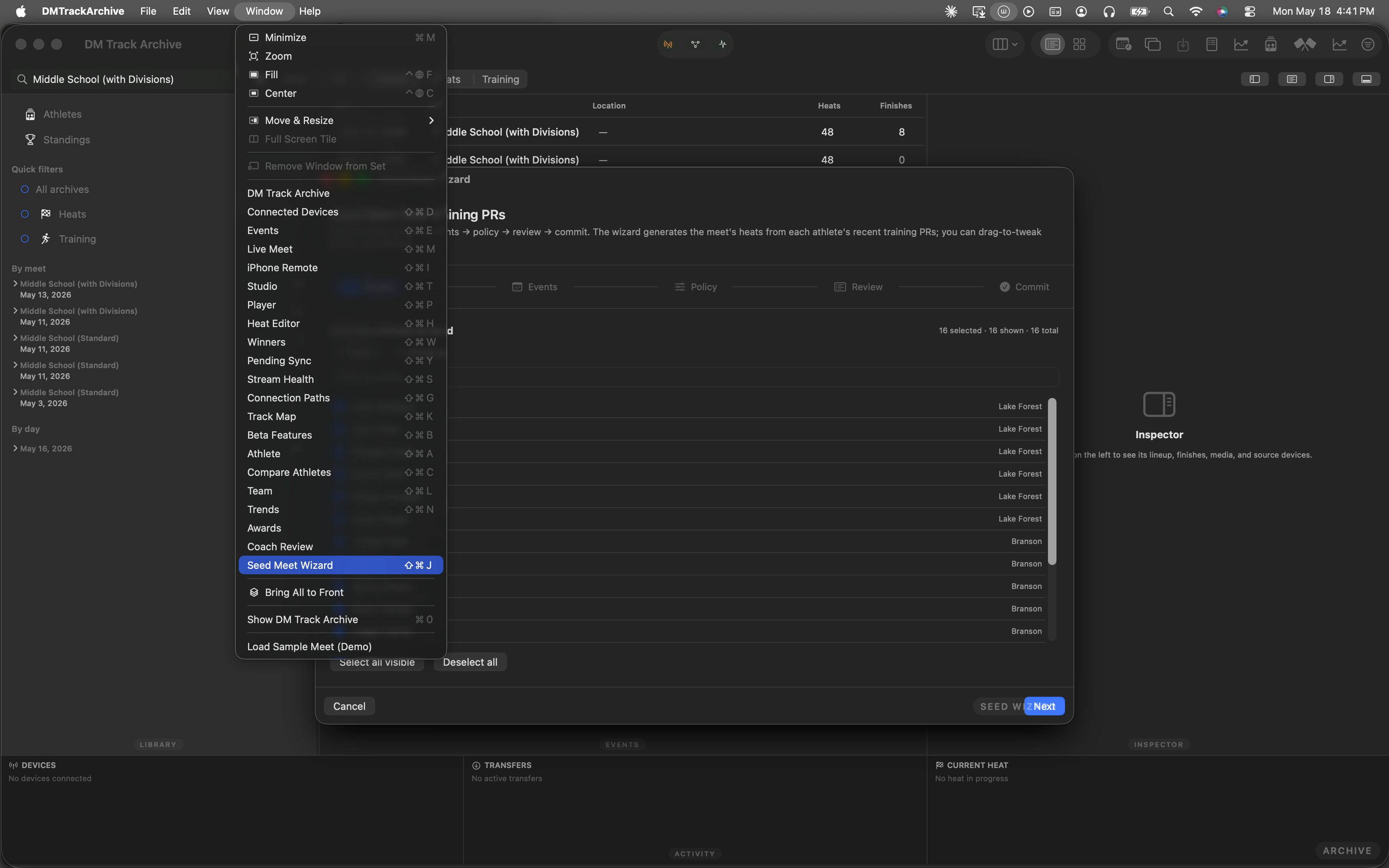
Window menu open · Seed Meet Wizard highlighted · ⌘⇧J shown next to the entry.
Step 1 — Pick the roster
The wizard opens on the Roster step. The picker reads from coordinator.athletes; chip filters narrow by team or group; the search field fuzzy-matches on name or team. The counter in the header — 0 selected · 16 shown · 16 total — gives you a running tally as you check rows.
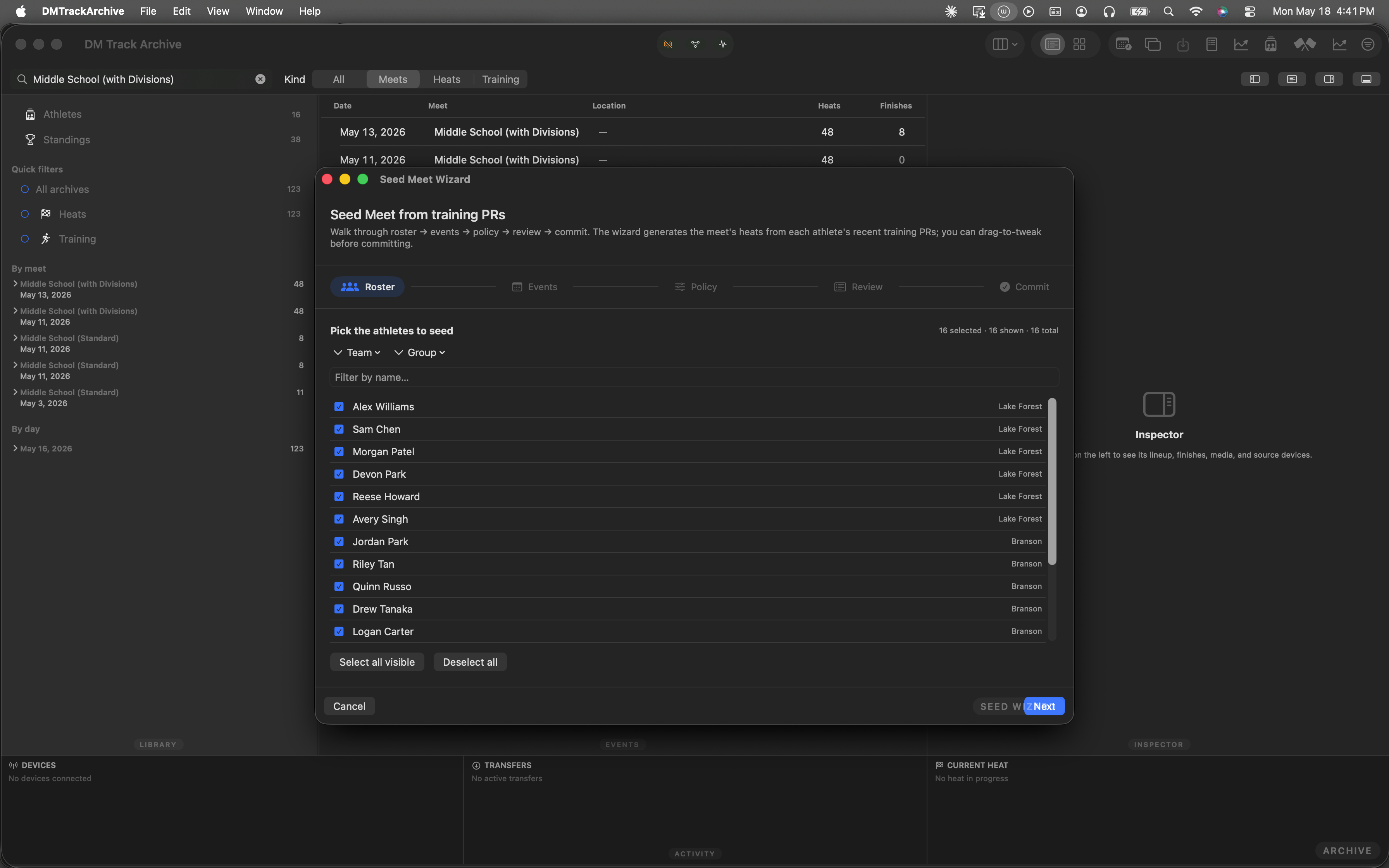
Roster step on first open. SceneStorage round-trips the selection so closing + reopening the wizard preserves your pick.
Select every athlete
Click Select all visible. The counter ticks to 16 selected, every row gets a check, and the Next button at the bottom activates. (Without at least one athlete picked, Next stays disabled — same gate as step 2's events.)
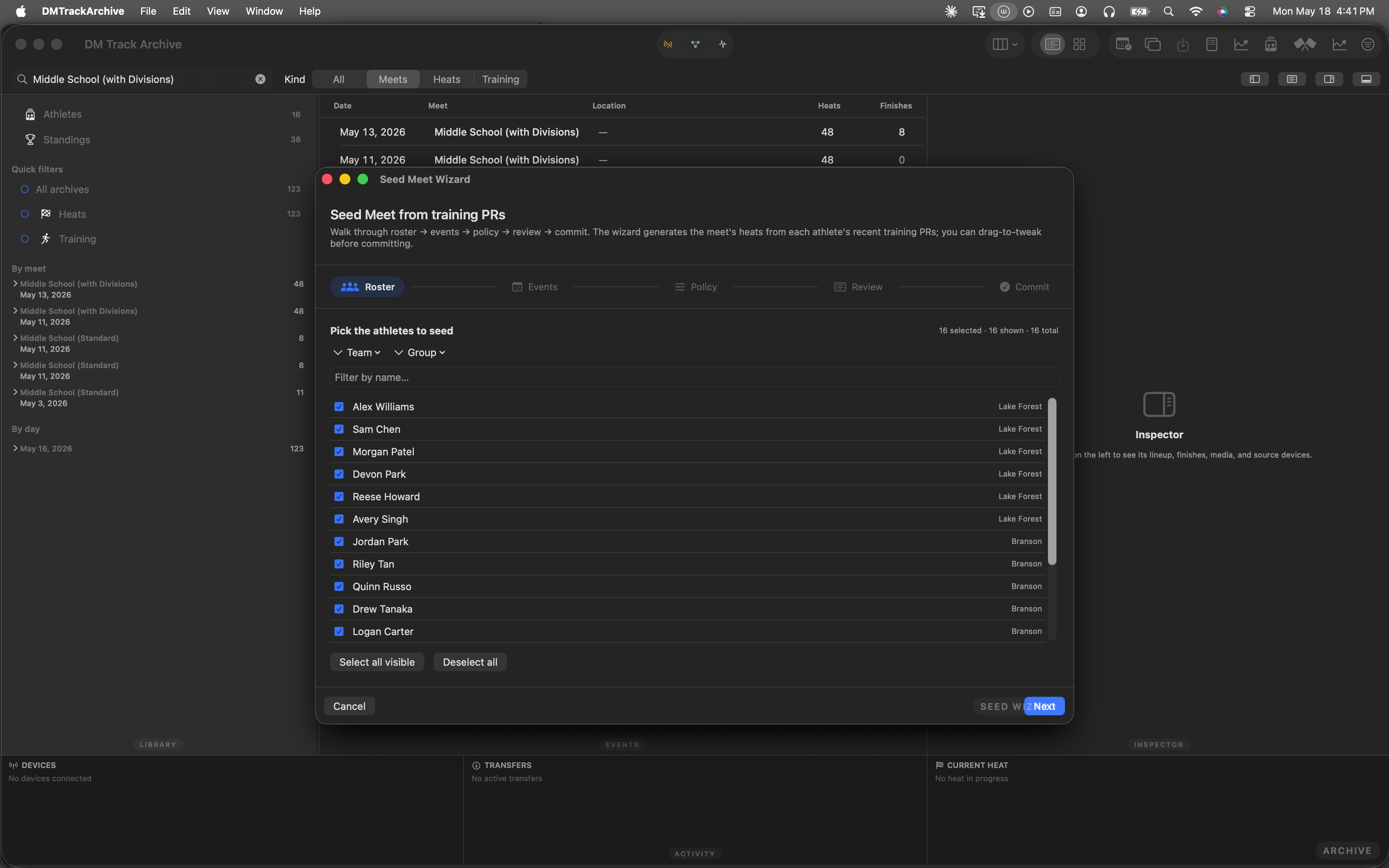
All 16 selected. Click Next to advance.
Step 2 — Pick events from four sources
Step 2 sources events from four places at once: the archive vocabulary (from the analytics index), the curated MacMeetTemplates.all presets, the iPad's currently-active MeetStructureSnapshot, and a free-form name+category entry row. All four push rows into the same selectedEventKeys set; the picker dedupes via Set semantics.
The fixture has no heat anchors, so the archive vocabulary is empty — but that's exactly the day-one case. The empty-state CTA points the operator at the template menu:
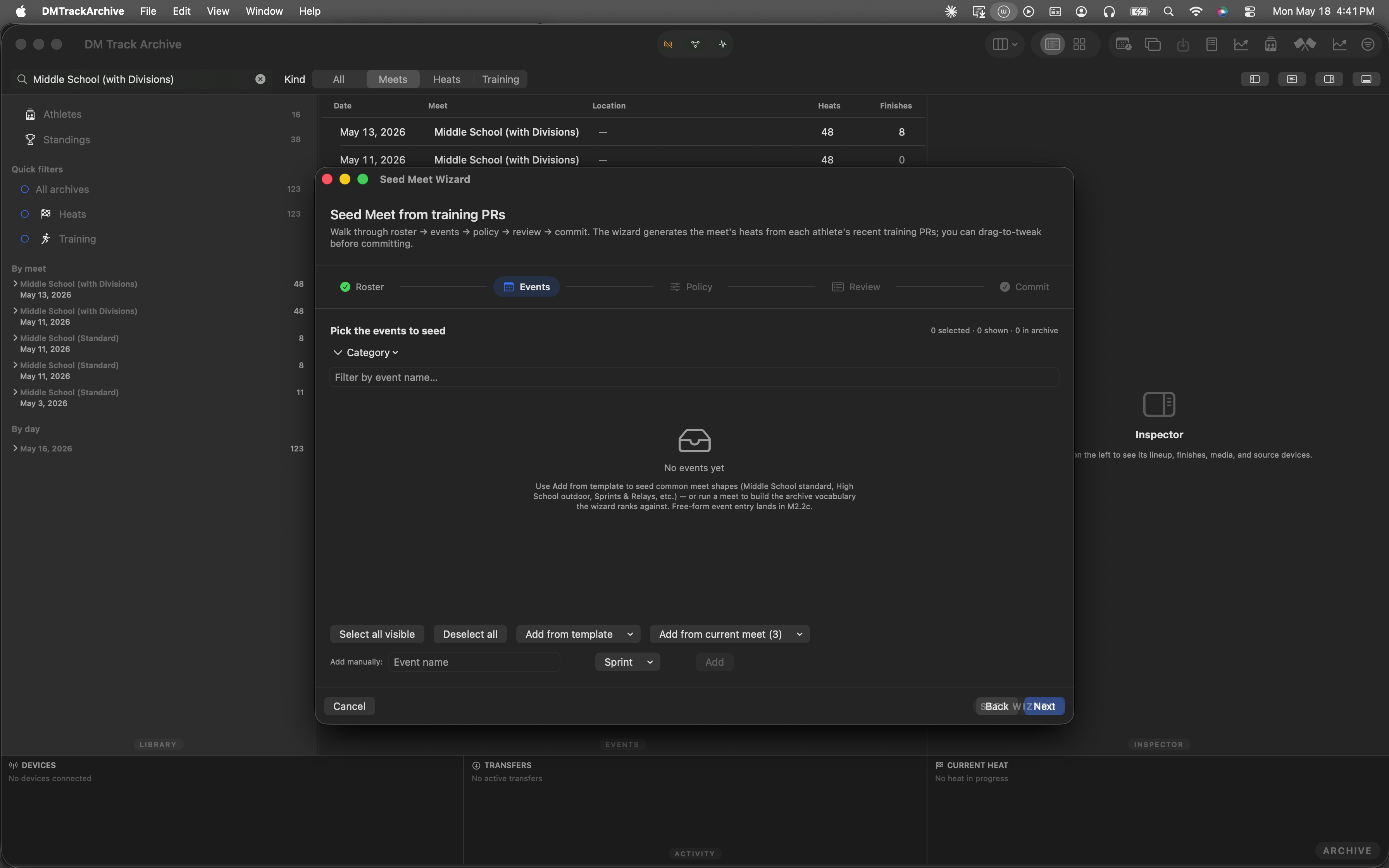
Empty archive vocabulary. The "No events yet" empty state points to Add from template for day-one rosters.
Pick a template
Click Add from template to surface the curated presets. Each item shows its name + a one-line summary so you can pick by shape, not by reading every entry. Sprints & Relays is highlighted below — it's a 6-event preset (60 / 100 / 200 / 400 / 4×100 / 4×400) that fits a practice meet or a small invitational cleanly.
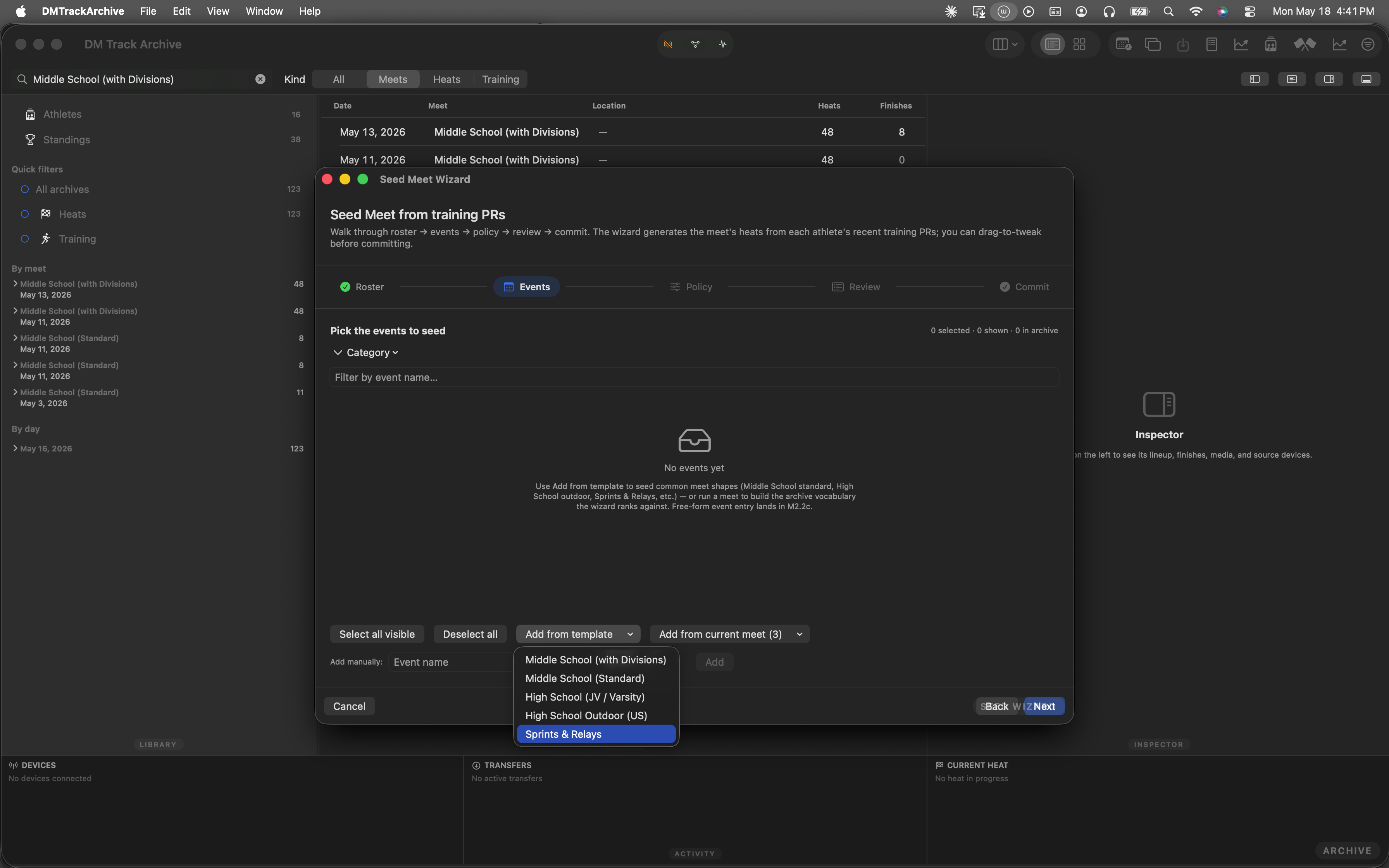
Template menu open · Sprints & Relays highlighted · click to insert all 6 events into selectedEventKeys.
Events appear in the picker
The Sprints & Relays template expanded into 6 EventKey rows. Because the archive has no prior data for these events, each row reads 0 races · 0 athletes — these are synthetic rows the picker added so you can see + uncheck them from the same list. Field-event entries would carry an orange "Field" pill on the right; track entries get blue category pills.
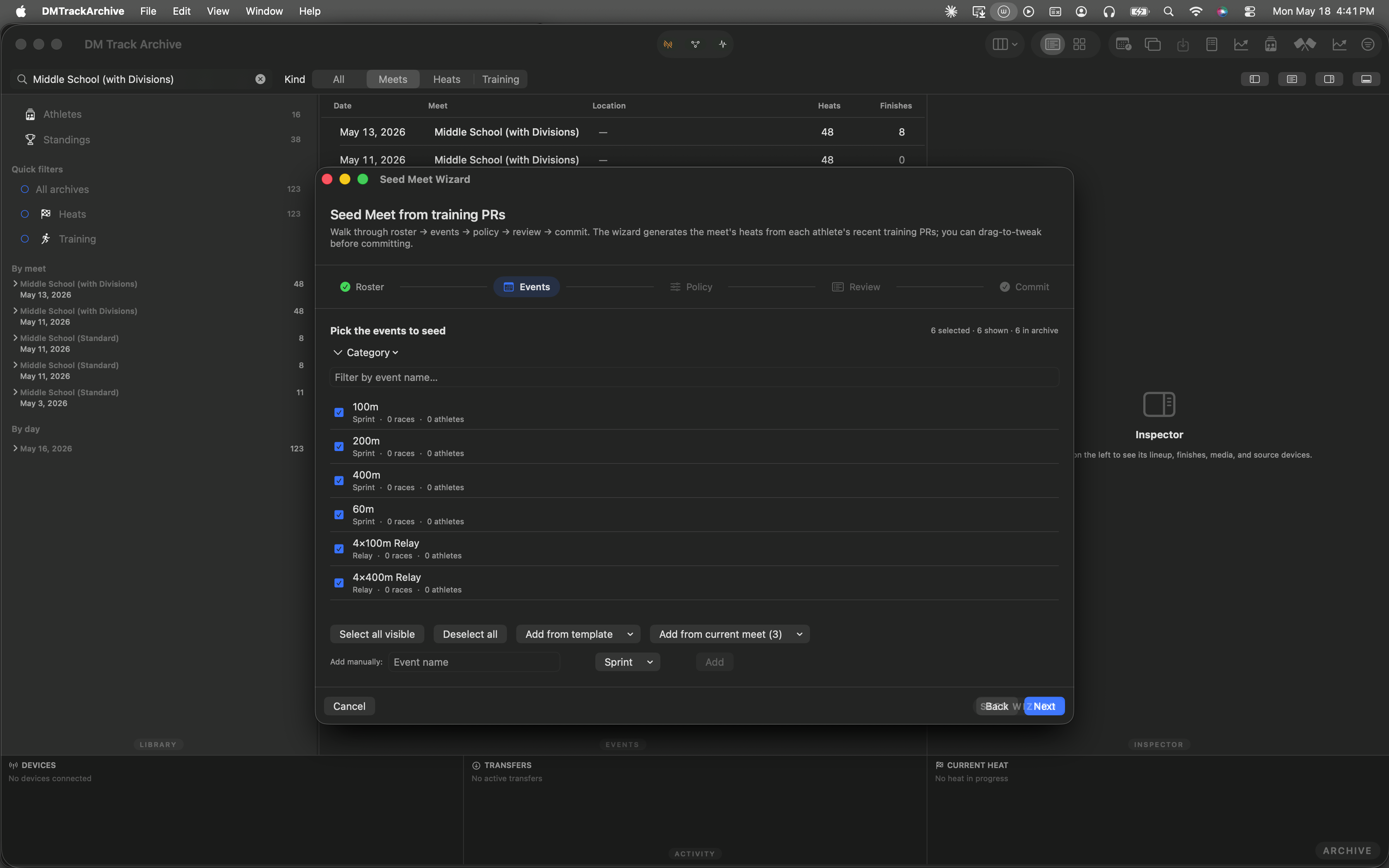
All 6 events selected. Counter at the top shows 6 selected · 6 shown · 6 in archive. Click Next.
Step 3 — Policy
Three sub-pickers control engine behavior:
- Lane count — 4 / 6 / 8 (standard) / 9 / Custom. Drives the within-heat serpentine fold (fastest in the middle lane).
- Distribution — Similar skill (standard) vs Mixed skill (tertile + team round-robin). Slow-heat-first is the default; mixed-skill spreads tertiles across heats with team diversity.
- Data window — All-time / Last 6 months / Last 8 weeks / Last 2 weeks. Out-of-window PRs are treated as no-data; in-window PRs older than the midpoint pick up a stale flag.
The Summary block at the bottom computes the implied heat count live as you change pickers.
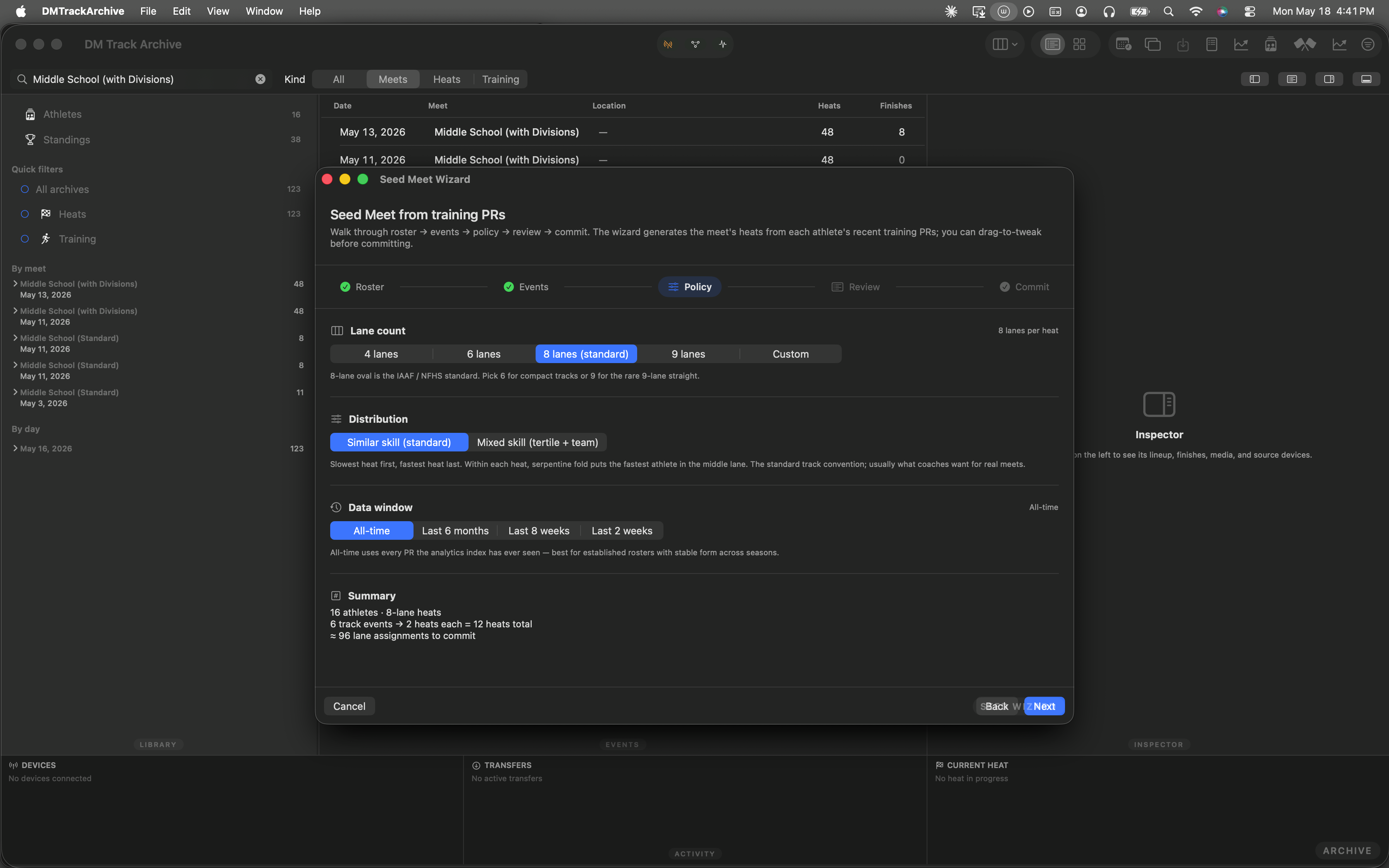
8-lane similar-skill, all-time. The summary at the bottom reads 16 athletes · 8-lane heats · 4 track events × 2 heats each = 8 heats total · 2 field events → 2 flights total · ≈ 80 lane assignments to commit.
Step 4 — Review
The wizard runs MeetSeedEngine.seed(...) once per selected event with the chosen policy and renders per-event sections with heat cards inside. Each heat card lists its athletes by lane number; track events get Heat N (slowest/fastest) titles, field events get a single Flight (best → unknown) card.
Without prior race data every lane shows the yellow seed: none capsule. The engine still places athletes in the slowest heat first per locked decision #6 (no-data routes to safety), with serpentine lane assignment within each heat. Drag a lane onto another lane in the same event to swap athletes — both swapped lanes pick up an edited pill that survives across step navigation. Cross-event drags are blocked at the drop site.
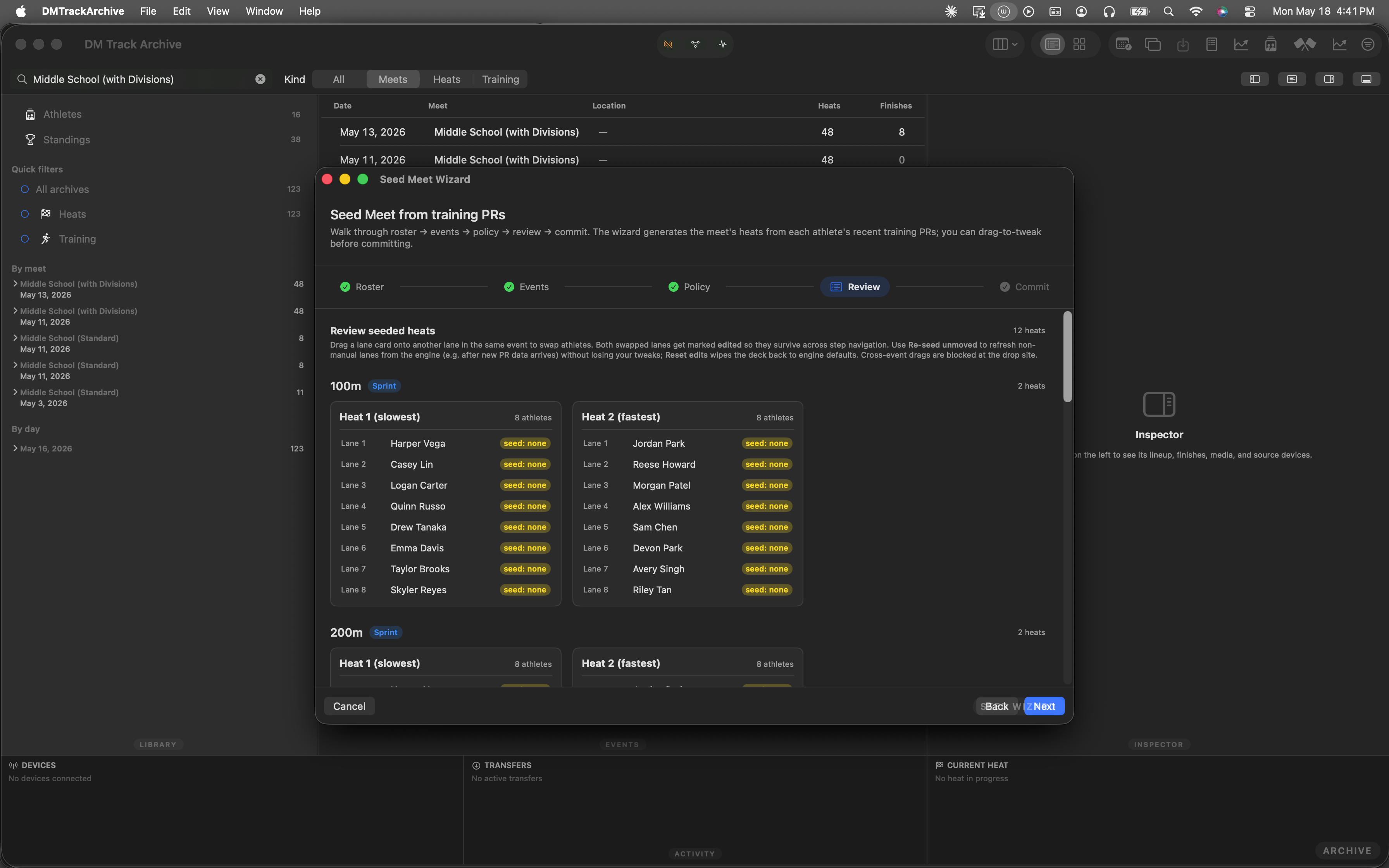
Review pane with per-event sections. seed: none capsules everywhere because the fixture has no prior race data — in a real archive you'd see seed times alongside athlete names.
Step 5 — Commit
The commit step asks two questions: where to commit (new meet vs add to the iPad's current meet) and the new meet's metadata (name, date, optional location). The destination defaults to "add to current meet" when the iPad has a snapshot live, "create a new meet" otherwise.
The Will create summary tallies what the commit will fan out — distinguishing new event groups from reused ones when committing into an existing meet. Click Commit to iPad to confirm:
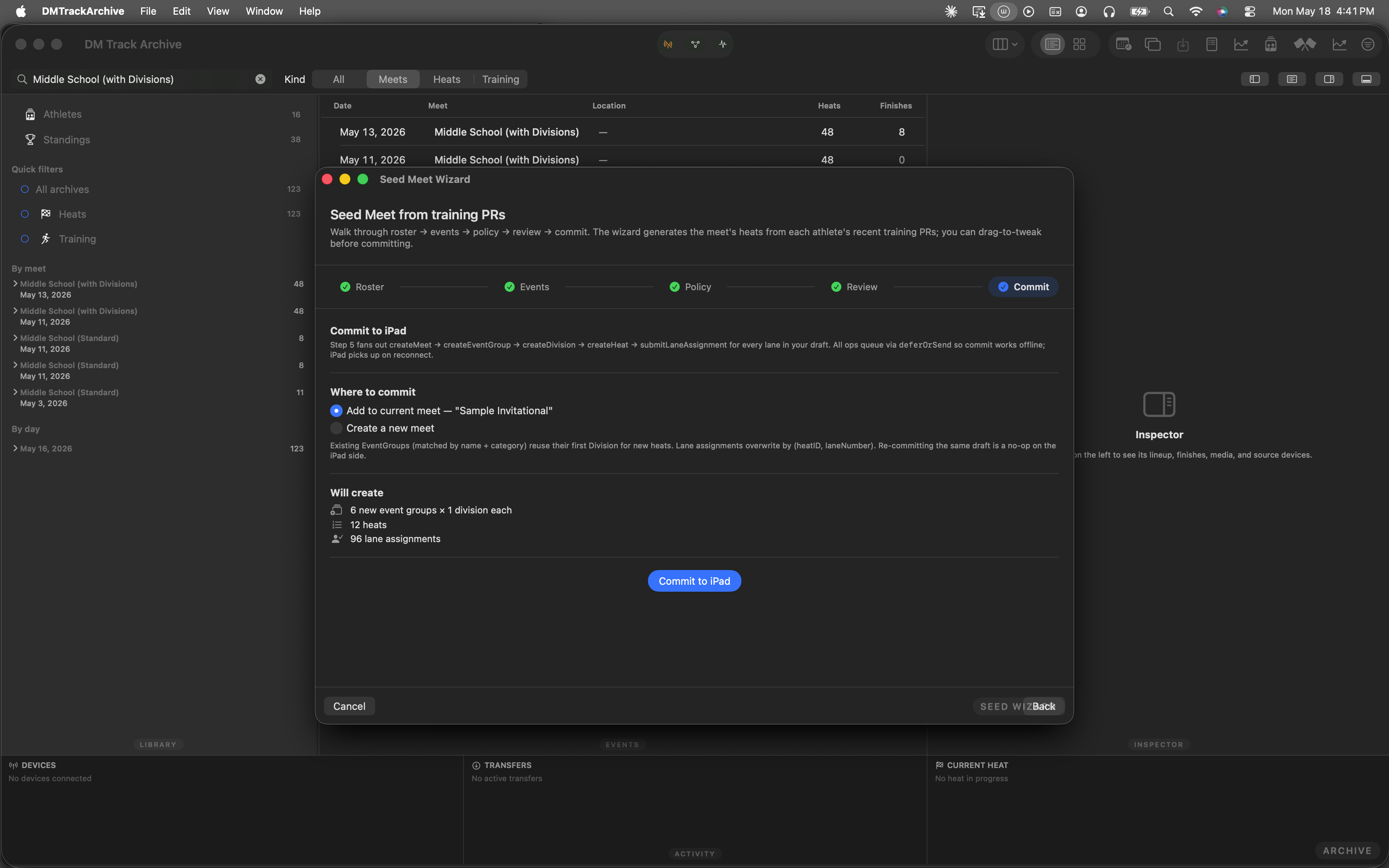
Commit pane with destination picker + meet form + will-create summary + the prominent Commit to iPad button.
deferOrSend: every wire op (createMeet → createEventGroup → createDivision → createHeat → submitLaneAssignment) queues through the same offline-aware path the existing Mac authoring flow uses. Commit works offline; the iPad picks up on reconnect. Re-committing the same draft is a no-op — lane assignments overwrite by (heatID, laneNumber).
Why this is faster than 480 manual lane assignments
- Pure-functional engine.
MeetSeedEngine.seed(...)is a pure function over(roster, event, policy, prsLookup, asOf). Same inputs always produce the same draft. A tiebreaker on athlete UUID keeps results stable when two athletes share a PR to the millisecond. 76 assertions cover the math. - Serpentine fold per IAAF. Fastest athlete in the middle lane, others alternate outward. For 8 lanes that's 4-5-3-6-2-7-1-8; computed dynamically for arbitrary lane counts.
- Slow heat first. Heat 1 is the slowest, the last numbered heat is the fastest. Partial heats (the remainder when athletes don't divide evenly) fill the slowest heat — standard track convention.
- Re-seed preserving manual edits. Drag a few lanes, click Re-seed unmoved, the engine refreshes the rest while your manual placements stay put. The
MeetSeedEngine.reseed(preservingManual:)companion handles the swap-merge correctly. - This walkthrough is automated. The 10 screenshots above came from an XCUITest that drives the wizard end-to-end against a deterministic fixture. Every menu screenshot hovers the target item before capture so the highlight is visible — you can see exactly what's about to be clicked.
The rest of the meet auto-seed workstream
M1 — single-event seeder: a wand button in the Heat Editor footer that opens a one-heat preview sheet. Same engine, scoped to one heat at a time — useful when you've already built the meet structure manually and want to fill lanes from PRs.
M3 — per-athlete event suggestion: the Athlete Detail page gains a "Suggested events" section ranking each event the athlete has 2+ appearances in against teammates who've also raced it. "Add to Seed Wizard" hands the (athlete, event) pair off to this wizard pre-populated on step 2.
M4 — stale-data filter: already integrated into step 3's Data window picker. PRs outside the window route as no-data; in-window-but-older-than-midpoint PRs get a purple "stale" pill in the review pane so you can spot aging data at a glance.