Long Jump fixture
The fixture seeds a Long Jump · Boys field event (kind: jumpsThrows) alongside the sprint/relay events. Pin it as the active heat with -test.scenario fieldEvent; the Mac's "Edit Field Marks…" button gates on currentHeat.eventCategory == "Field", so the fixture-arg flip is what makes the button surface.
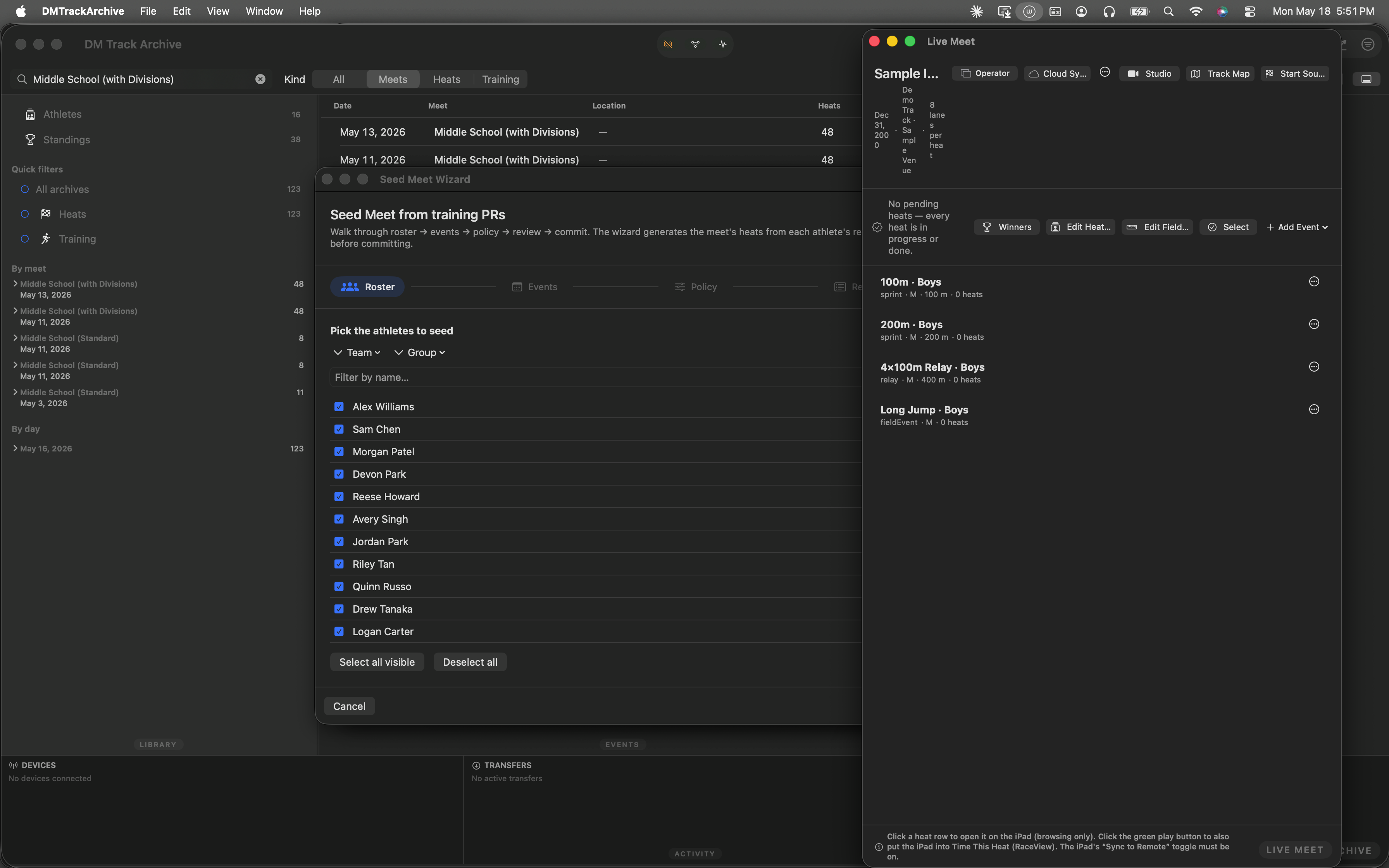
Mac archive just after launch. The Long Jump heat is pinned as the active heat.
Open Live Meet
Same entry-point as every other Live Meet walkthrough: ⌘⇧M or Window menu → Live Meet. Below, with the menu item highlighted in blue.
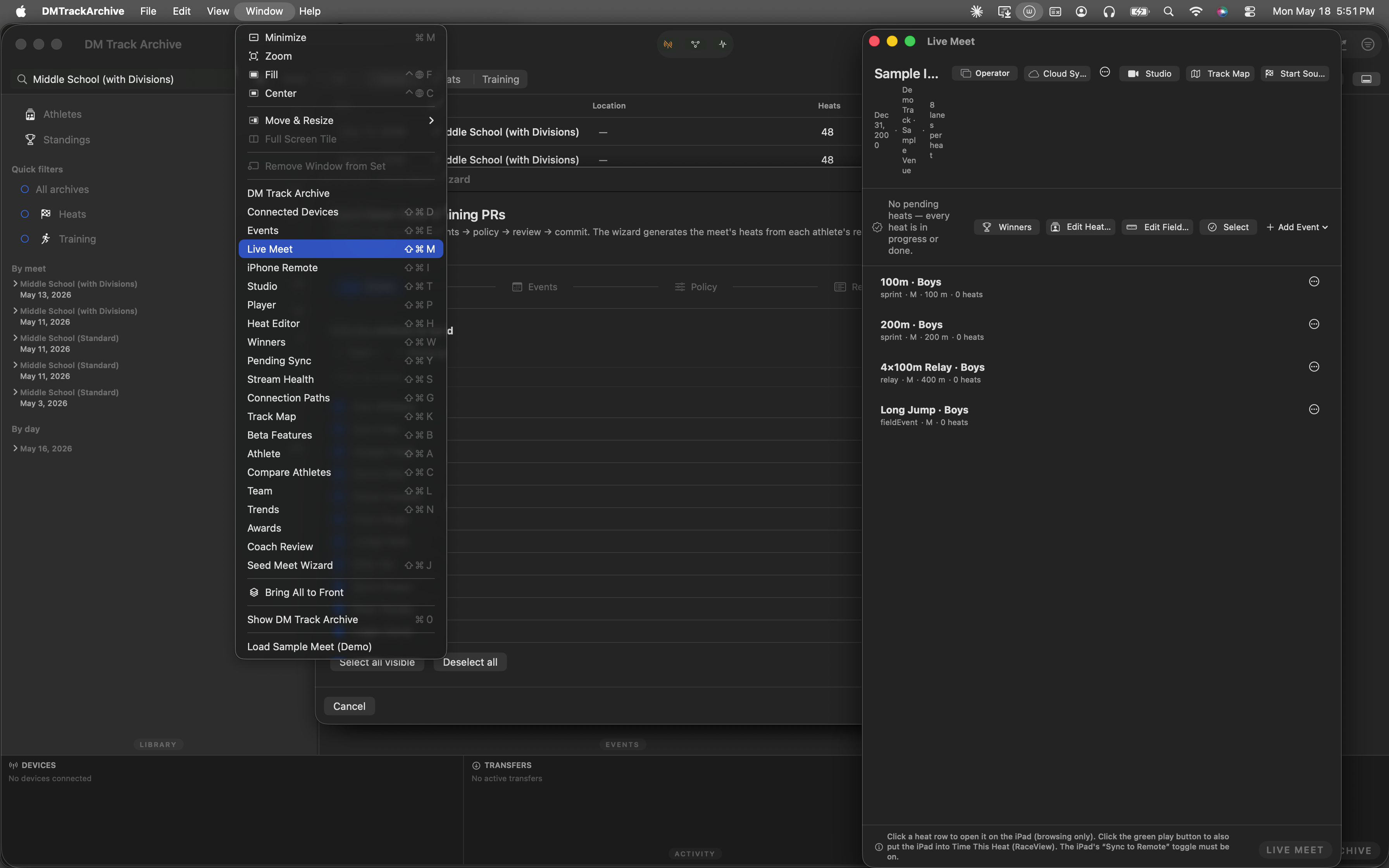
Window menu · Live Meet highlighted · ⌘⇧M.
Live Meet shows the field-event heat as active
The event list in the Live Meet header now includes Long Jump · Boys alongside the sprints and relay. The current-heat indicator (the bullet next to the event name) shows the field heat is active — that drives the "Edit Field Marks…" button onto the action row.
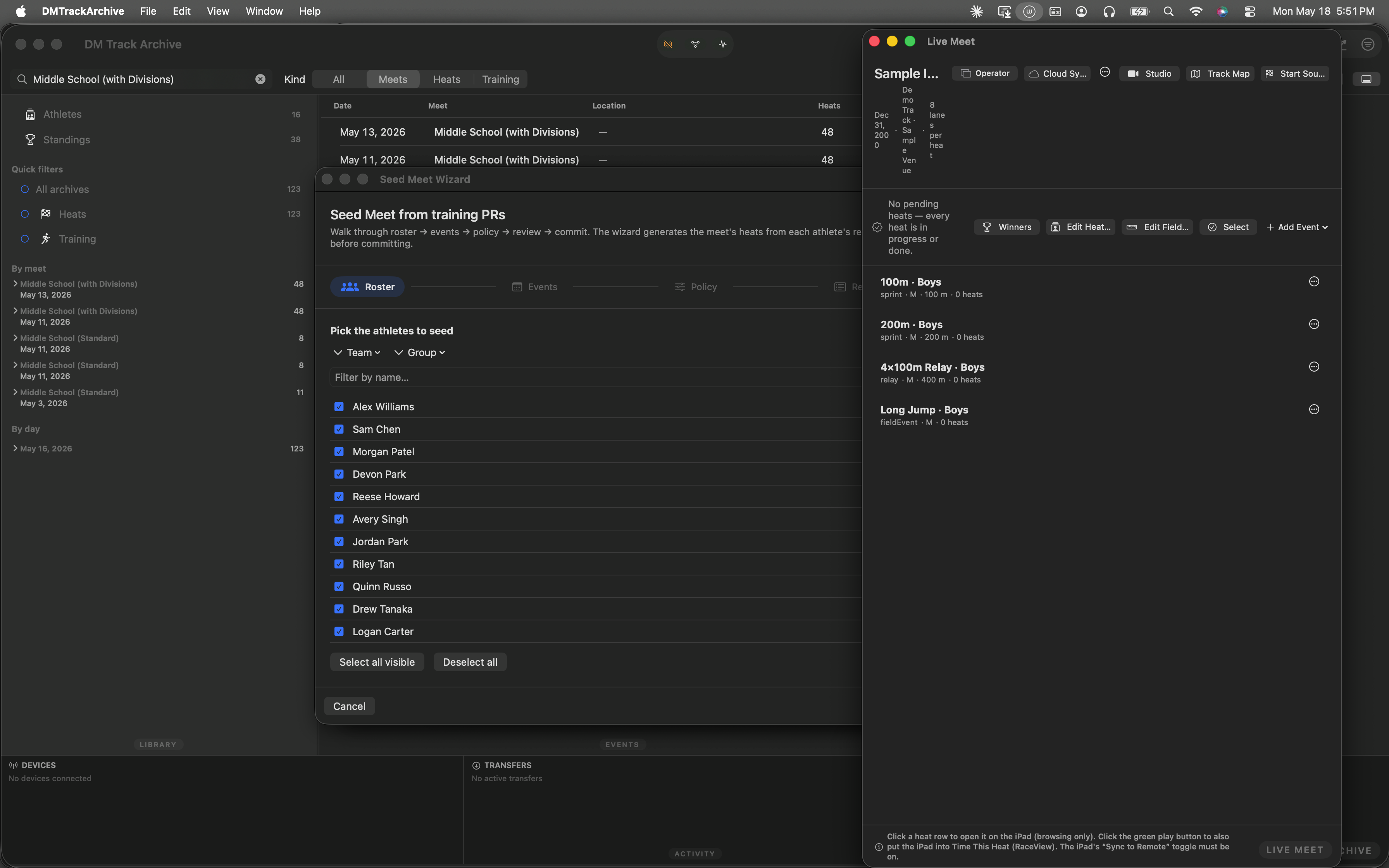
Long Jump · Boys in the event list. The action row above the events gains the Edit Field Marks… button.
Hover "Edit Field Marks…"
Below, the button is hovered before the click so readers see the bordered-button highlight state. The ruler icon is the visual cue that this is a measurement-entry button (vs Edit Heat Lanes's lane-grid icon).
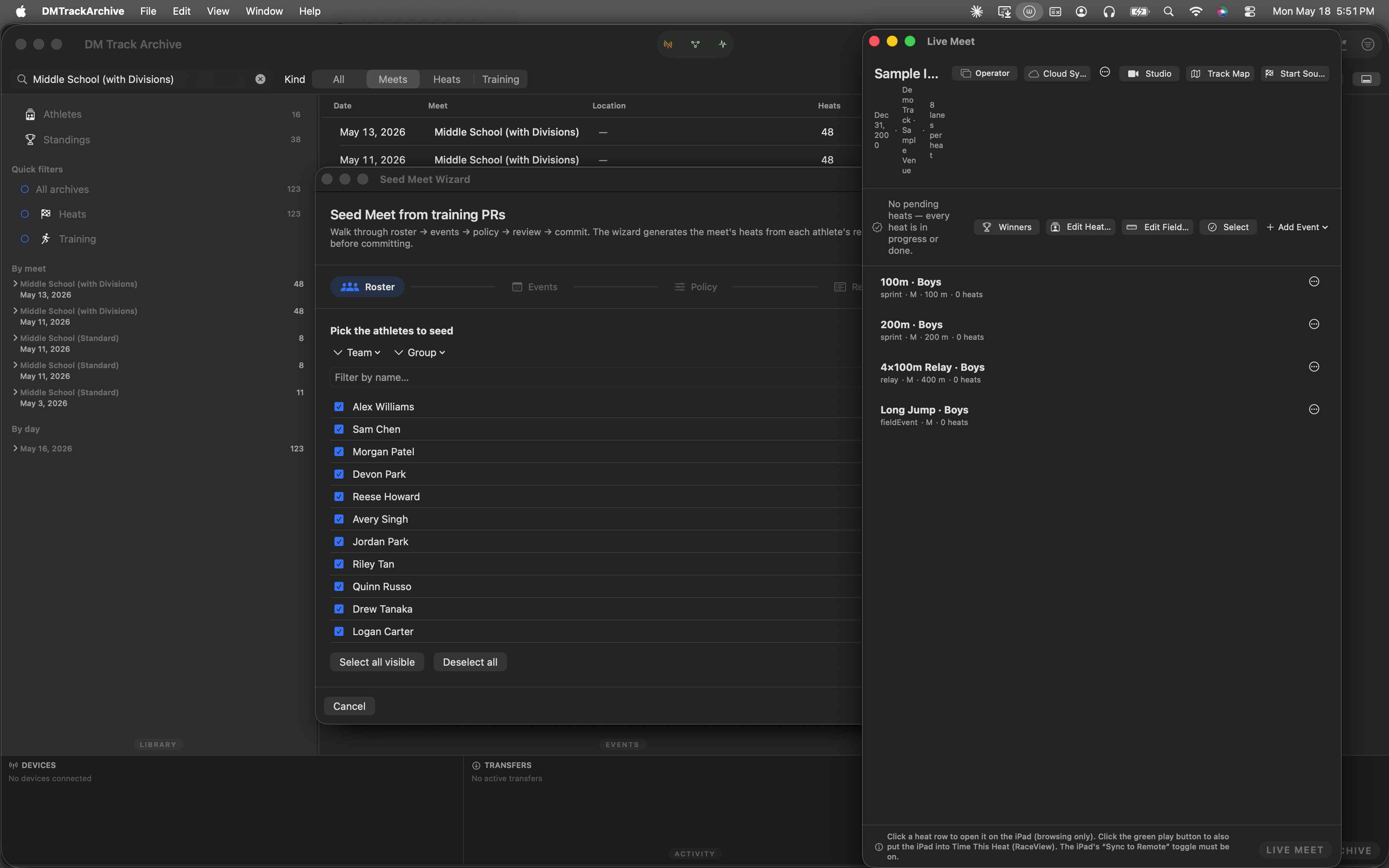
Button hovered. Click opens the FieldEventScoringSheet.
FieldEventScoringSheet — per-athlete attempts
The scoring sheet opens with each athlete in their own card. For jumps and throws (kind: .jumpsThrows) every athlete card has three attempt rows + Foul / Pass toggles per attempt + an optional Coach notes field. The "No mark yet" badge at the top right of each card flips to a green "best mark" pill once at least one valid attempt lands.
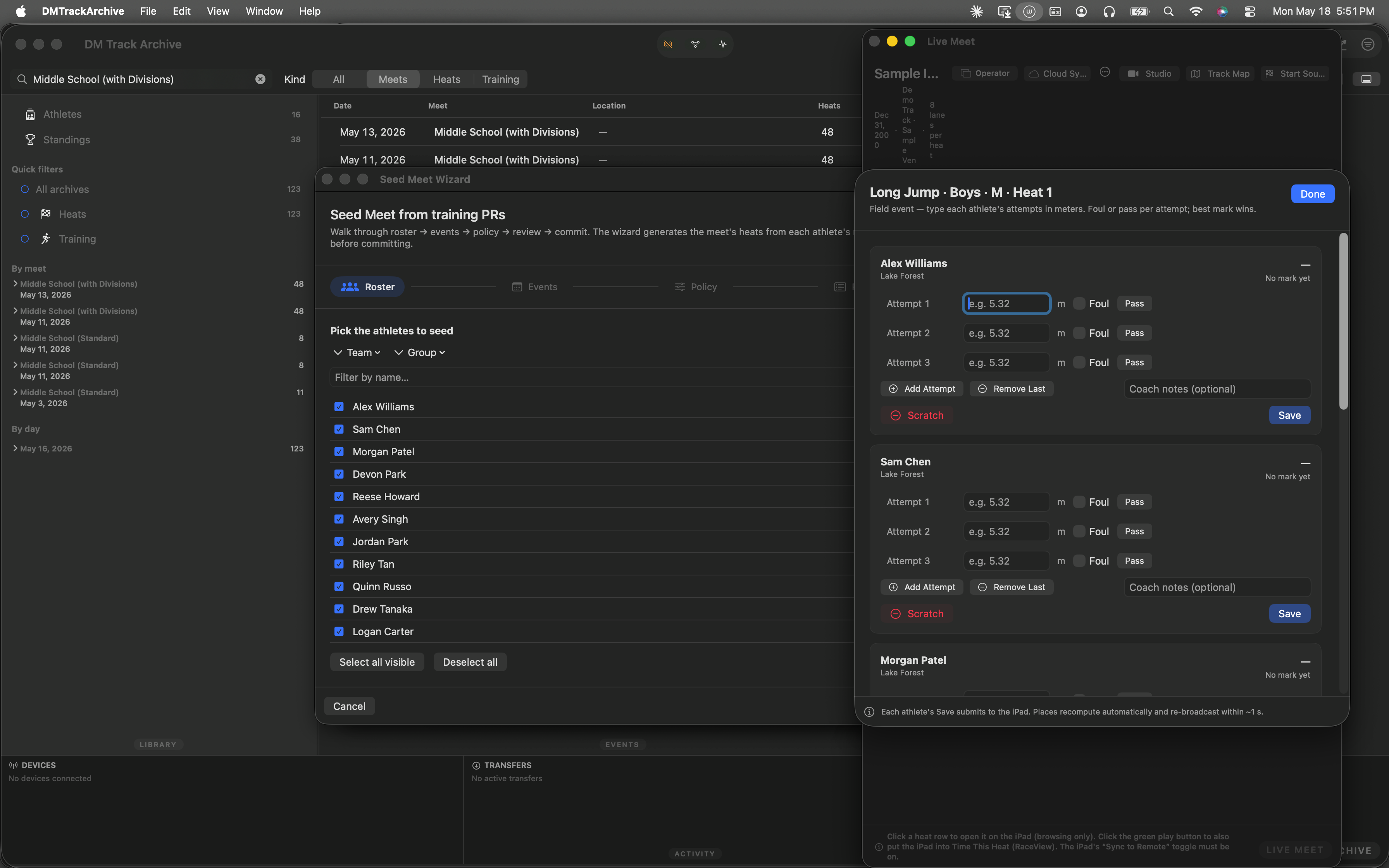
Mark entry sheet. Type a number → tab to next field; Foul invalidates the attempt; Pass skips it entirely (e.g. saving energy for the next bar).
- jumpsThrows (this walkthrough's case — long jump, triple jump, shot put, discus, javelin, hammer): three attempts per athlete, best counts.
- highJump: bar-by-bar with a result picker per height (Cleared / Failed / Pass). Three misses at any height eliminates. Best = highest cleared bar.
- poleVault: same shape as high jump.
IAAF tie-aware places
- Jumps and throws: sorted by best mark descending. Ties broken by second-best mark, then third-best — IAAF Rule 180 countback. Unbreakable ties share the place; the next athlete's place jumps accordingly (e.g. 1 / 2T / 2T / 4).
- High jump / pole vault: sorted by highest cleared bar descending. First tiebreak is fewer misses at the cleared height; second is fewer misses overall. Unbreakable ties beyond that require a manual operator override (the SPEC notes the rare jump-off case).
- Engine math is tested.
FieldEventScoring+Tests/FieldEvents/run.shcover countback (mark, second-mark, third-mark), fewer-misses tiebreak, no-mark routing, and the inclusive-tie path. - Wire-shape independent. The Mac archive consumes the same
FieldEventResultwire shape the iPad ships. Round-trips throughsubmitFieldEventResult. The Mac just adds a Mac-shaped editor on top of the iPad's primary entry path. - Graduated 2026-05-18.
beta.fieldEventsflag removed — the "Edit Field Marks…" button always shows when the active heat's event category is Field.
Where field-event results land
Standings: field events render alongside sprints in the meet standings, with their best-mark column (units configurable per meet — metric or imperial).
Awards: the W2 ledger picks up field events automatically. Top-N + tied-Nth handled by the same generator the W2 walkthrough documents. W2 walkthrough →
.dmtrackresults export: Cmd+E from the Standings window emits per-attempt JSON for every athlete, including the best mark + the assigned place. Useful for cross-meet rosters and parent share-outs.