A heat with lanes assigned
This walkthrough drives against the same fixture the M2 walkthrough uses, plus one extra piece: a synthetic currentHeat tied to the 100m event with 8 lanes already filled from the roster. That gives the Heat Editor something to open onto + the wand button's gate something to satisfy (lanes count must be > 0; roster must be non-empty).
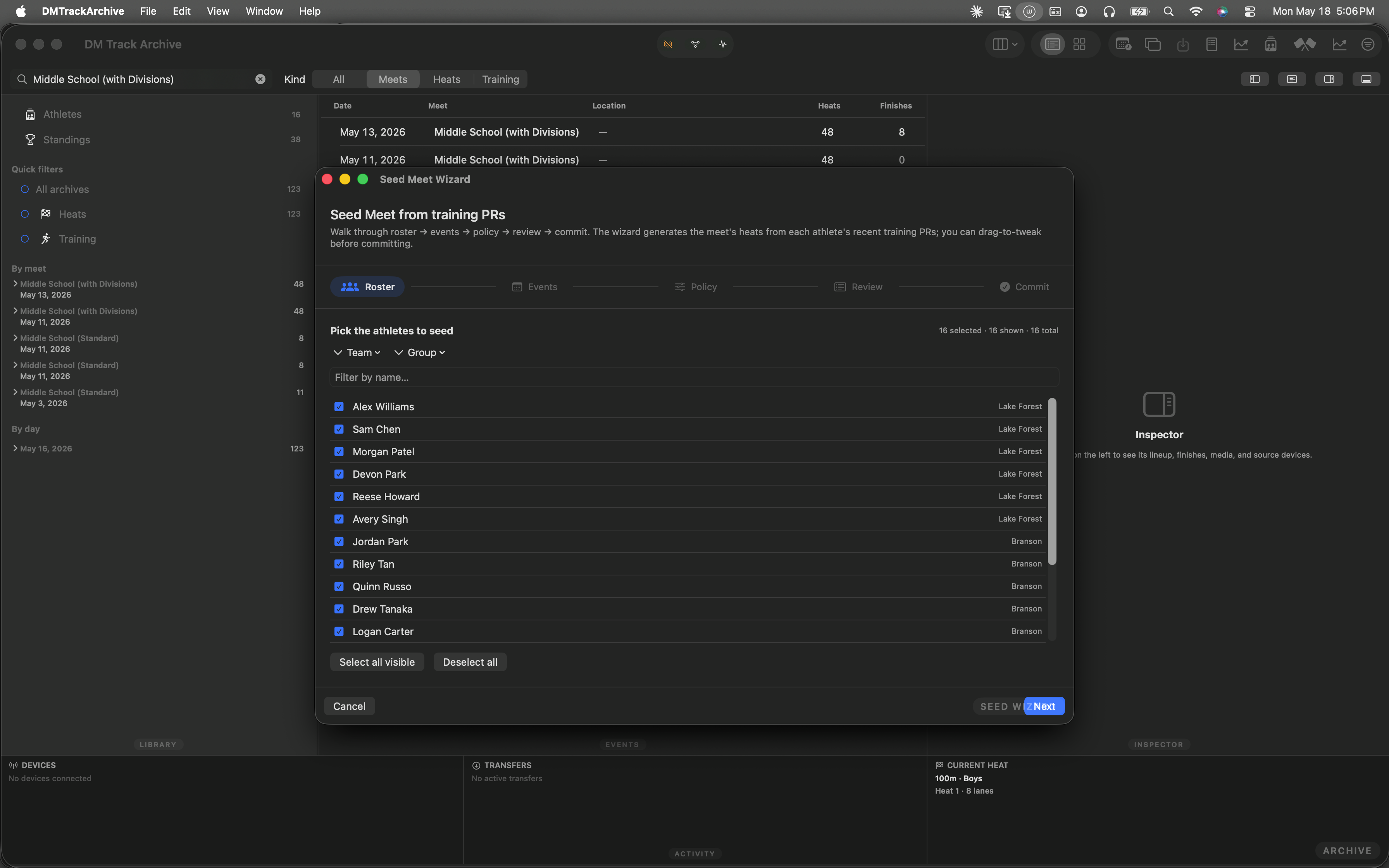
Mac archive just after launch. The Sample Invitational meet is loaded with the 100m heat ready to edit.
Open the Heat Editor
The Heat Editor lives as its own window scene (⌘⇧H) so you can keep it open alongside Live Meet on a second monitor. Below, the Window menu is open with Heat Editor highlighted so you can see exactly which entry to click.
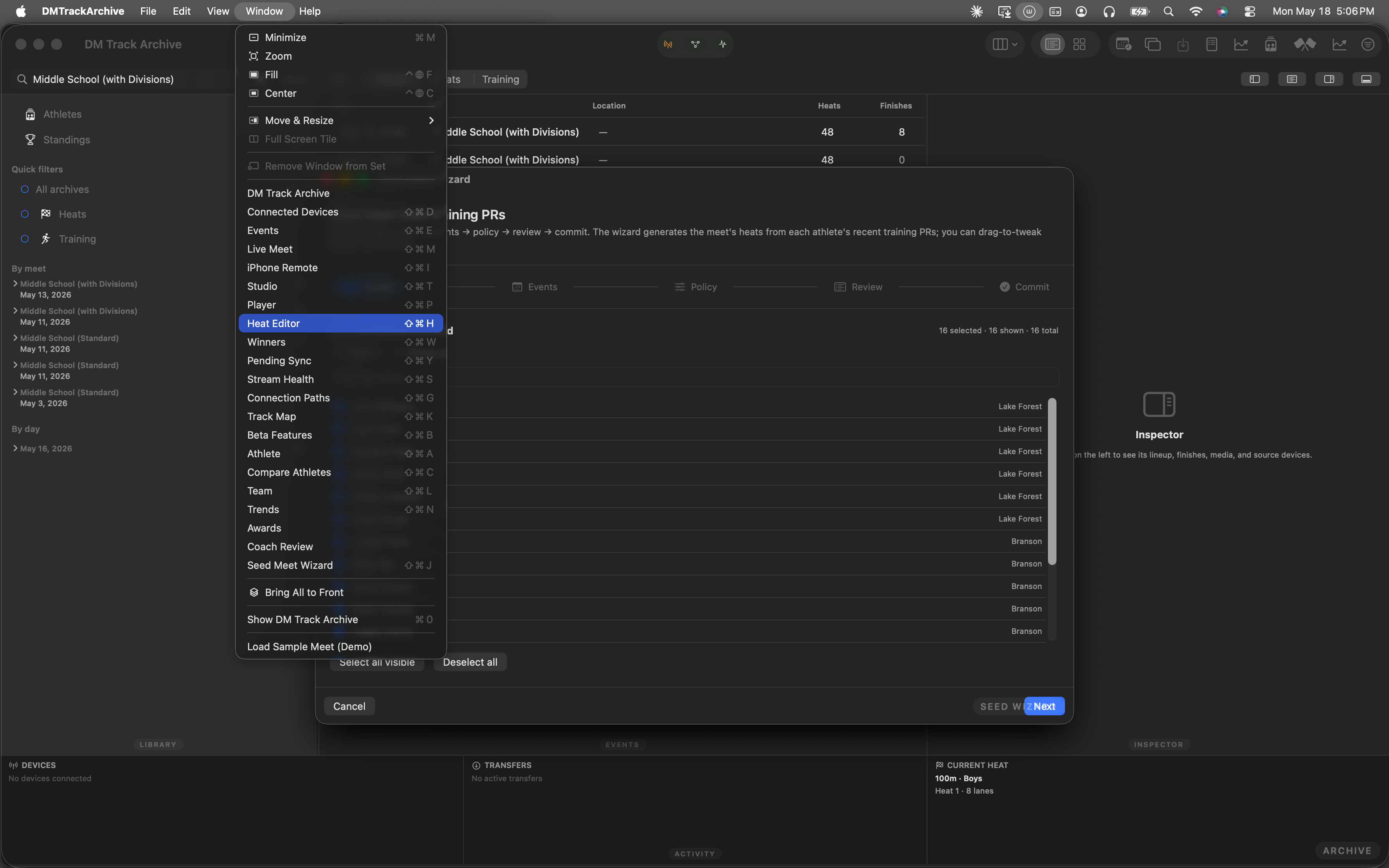
Window menu open · Heat Editor highlighted · ⌘⇧H shown next to the entry.
The wand button sits in the footer
The Heat Editor opens onto the current heat — 100m Boys, Heat 1 — showing 8 lanes filled with athletes from the roster. The wand button sits in the footer between the connected-state hint and the lane grid's bottom edge:
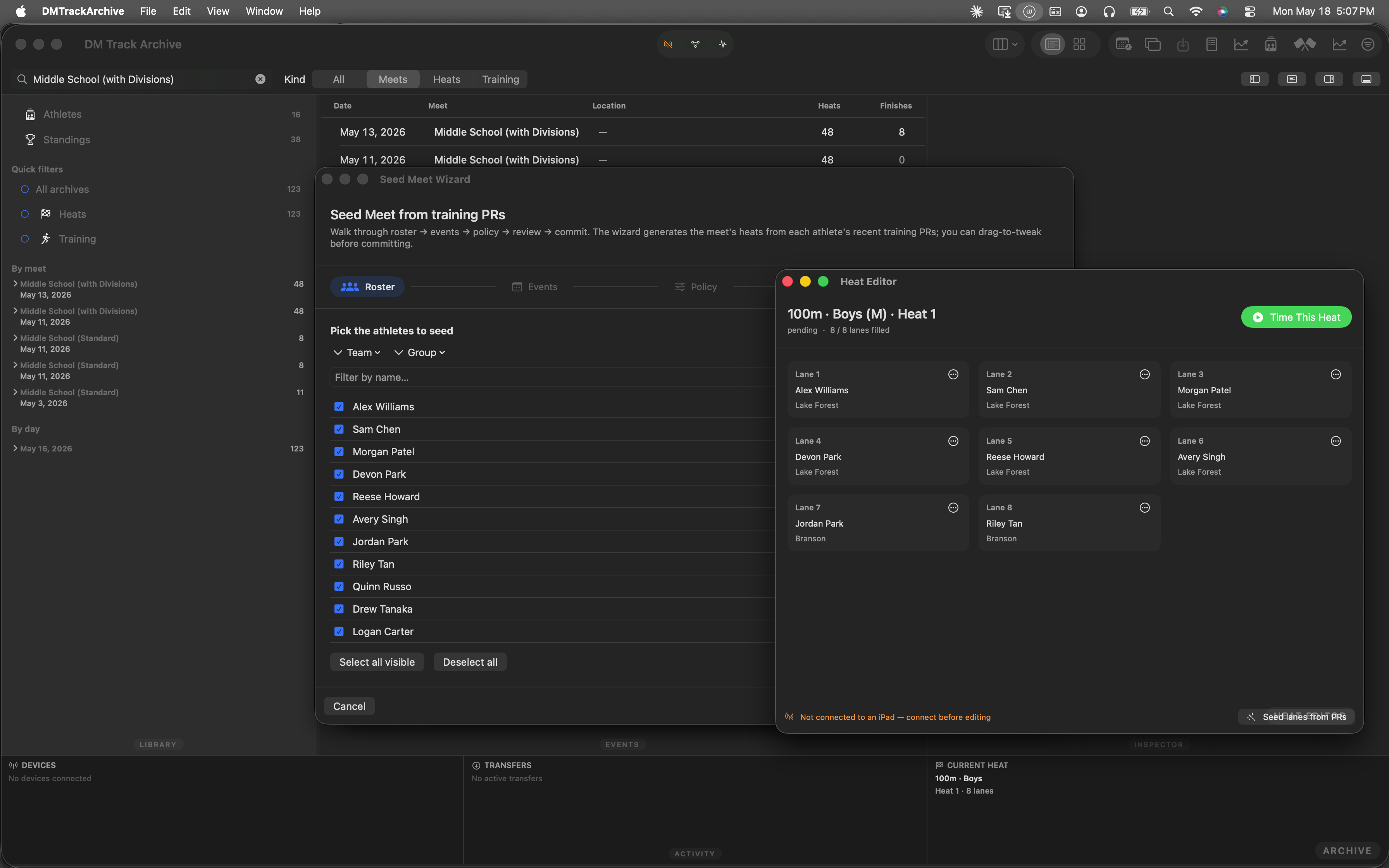
Heat Editor open on the current heat. The Seed lanes from PRs wand button is the leftmost action in the footer; readers see the highlighted state in this capture.
The preview sheet opens
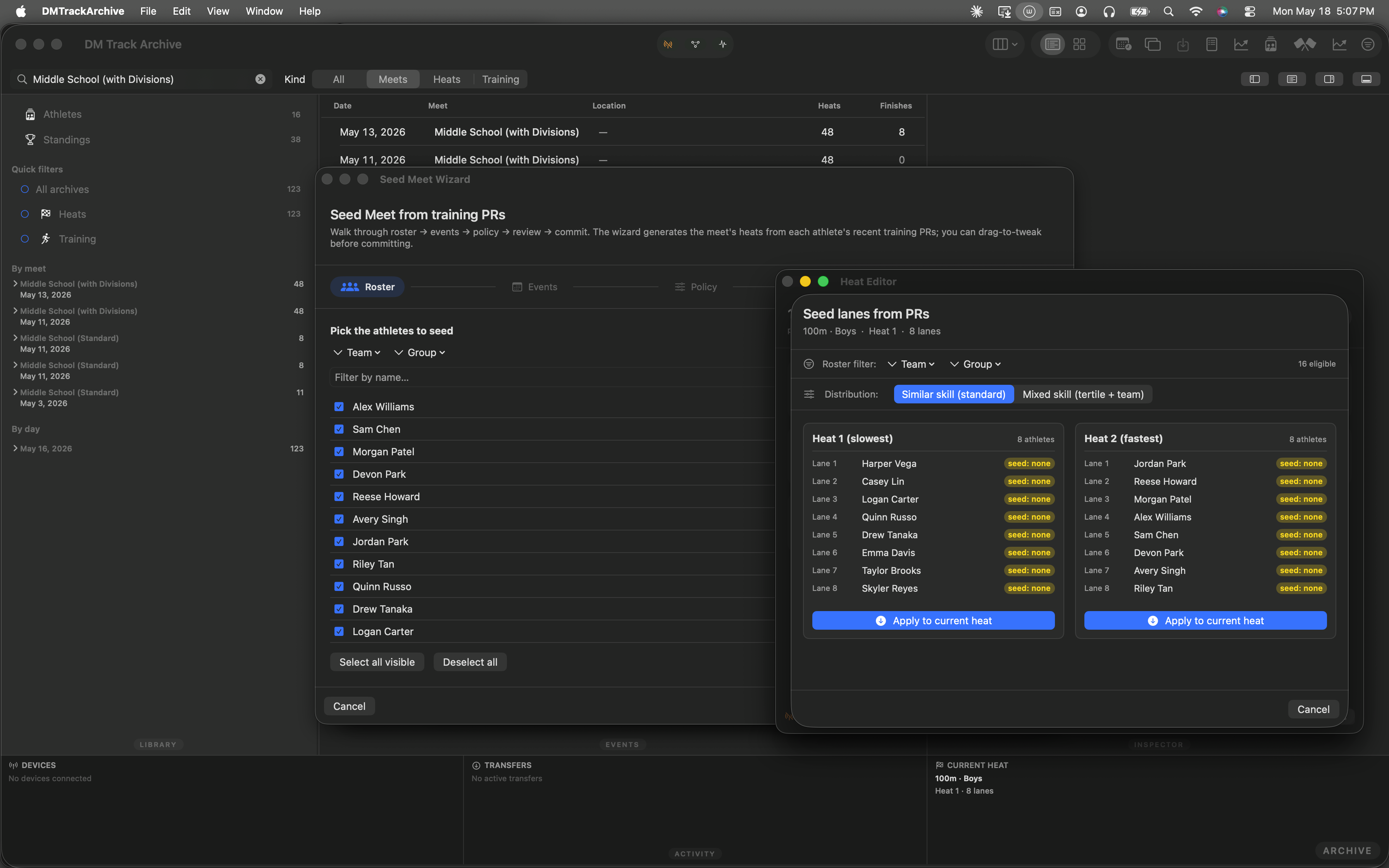
Clicking the wand runs MeetSeedEngine.seed(...) over the roster + this heat's event. The sheet renders the engine's output as side-by-side heat cards — one per candidate heat the engine produced. With 16 athletes and 8 lanes, the engine produces 2 heats: Heat 1 (slowest) and Heat 2 (fastest).
Each lane row shows the athlete's name, the lane number, and a seed-time indicator. The fixture has no prior PR data so every lane carries a yellow seed: none capsule — the engine still routes athletes correctly (no-data lanes go to the slowest heat per locked decision #6), it just can't print a time:
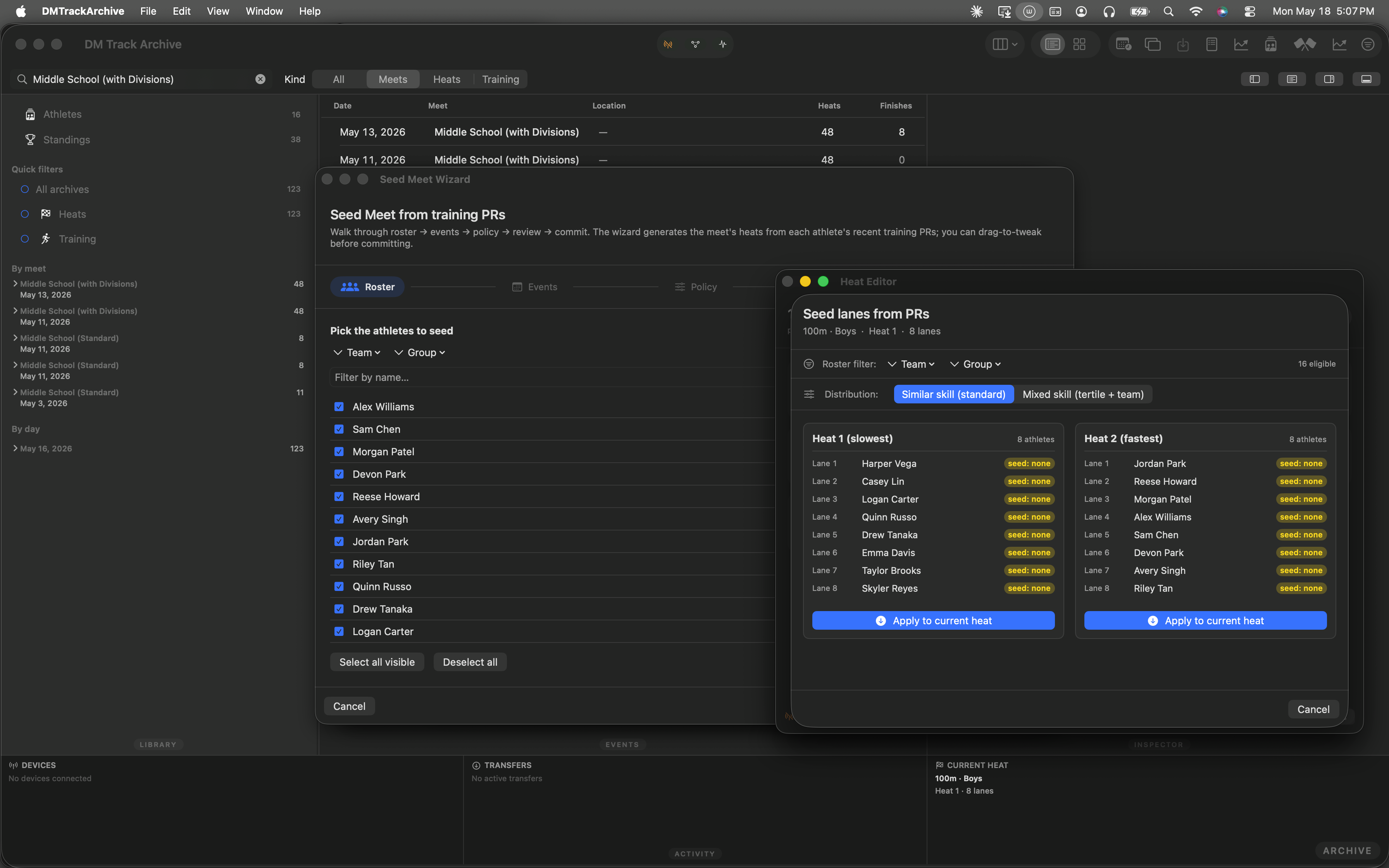
Two heat cards from the engine output. Each has an Apply to current heat button — pick whichever maps onto the heat you're editing.
Distribution picker — mixed skill mode
At the top of the sheet, the Distribution segmented picker flips between Similar skill (standard) and Mixed skill (tertile + team). Mixed skill spreads athletes across heats so each heat has a fast/medium/slow tertile and athletes from multiple teams — useful for mock heats or practice meets where you want even matchups across the field.
Distribution flipped to Mixed skill. The engine re-runs instantly; heats are reshuffled.
Same engine, scoped to one heat
- Shared engine with M2. The wand button calls the same
MeetSeedEngine.seed(...)the wizard uses. Same pure-function math, same serpentine fold, same tiebreaker. The only difference is the surface — single sheet vs five-step wizard. - Apply writes via existing wire. Per-card Apply fans out
sendSubmitLaneAssignmentfor each lane in the chosen heat (andsendRemoveLaneAssignmentfor any lanes the seed skipped). Same offline-aware path the manual editor uses; commit works whether or not the iPad is connected. - Facet filters narrow the pool. Chip-strip filters (Team / Group) shrink the eligible roster before the engine runs — useful when you want to seed only the boys' varsity in a heat that's gendered by event.
- This walkthrough is automated. The five screenshots above came from an XCUITest that drives the Heat Editor end-to-end against a deterministic fixture. The menu screenshot hovers Heat Editor before capture so the highlighted state is visible; the wand-button screenshot does the same.
When to use M1 vs the M2 wizard
Use M1 when you've already built the meet structure manually (events + divisions + heats) and want one heat's lanes filled from PRs. Open the Heat Editor, click the wand, pick a seeded heat, Apply. Done in 5 clicks.
Use M2 when you're authoring a meet from scratch and want everything — events, heats, and lane assignments — laid out at once. The wizard walks roster → events → policy → review → commit. Full walkthrough →