Sample meet, default policy
This walkthrough drives against the Sample Invitational fixture — the same one the W2 walkthrough uses. The meet's awardsPolicy defaults to .standardTop3 (top 3 medal per event, relay = both team plaque + 4 athlete medals), so the Awards section opens with the standard preset already filled in.
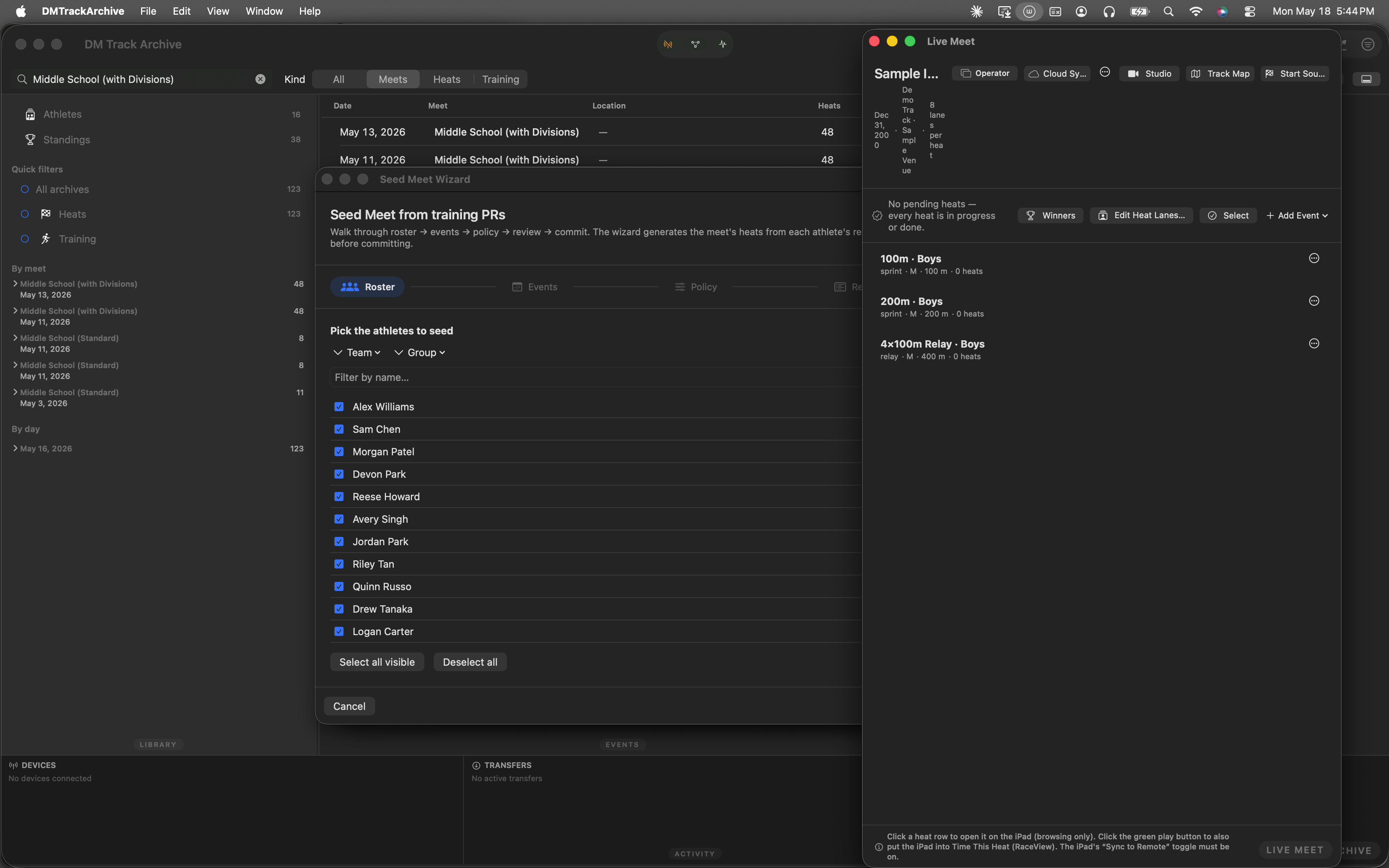
Mac archive just after launch.
Open Live Meet
The Edit Meet sheet — where the Awards section lives — is reached from the meet header's ellipsis menu in Live Meet. Cmd+Shift+M (or Window menu → Live Meet) opens that window.
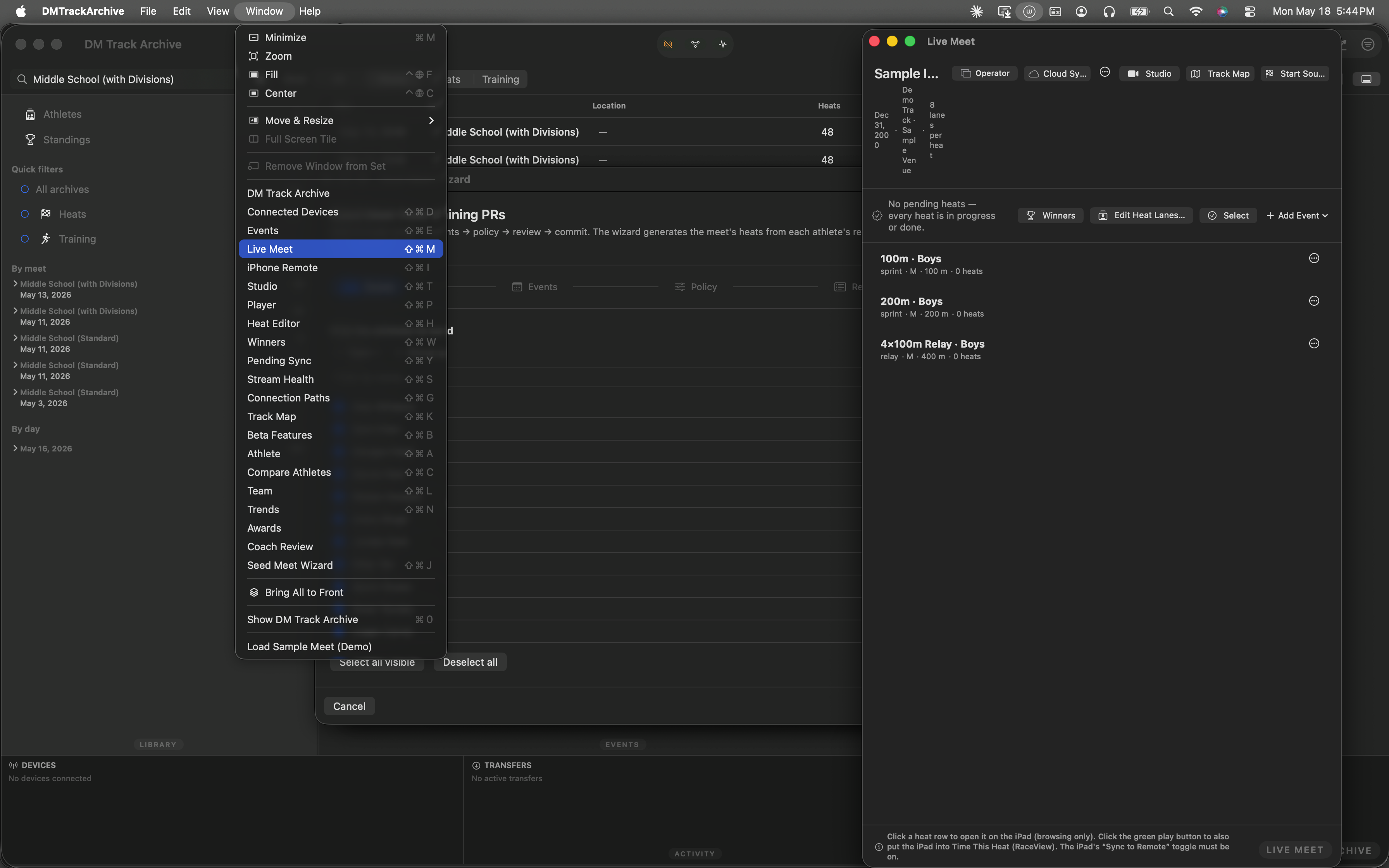
Window menu · Live Meet highlighted · ⌘⇧M.
Find the meet-menu ellipsis
Live Meet's header packs the meet title + role chip + Cloud Sync chip + the action buttons (Studio / Track Map / Start Sources / Edit Heat Lanes / Select / Add Event). Right of those, between the action row and the right edge of the window, sits a small ellipsis button. That's the meet menu — edit, new, delete.
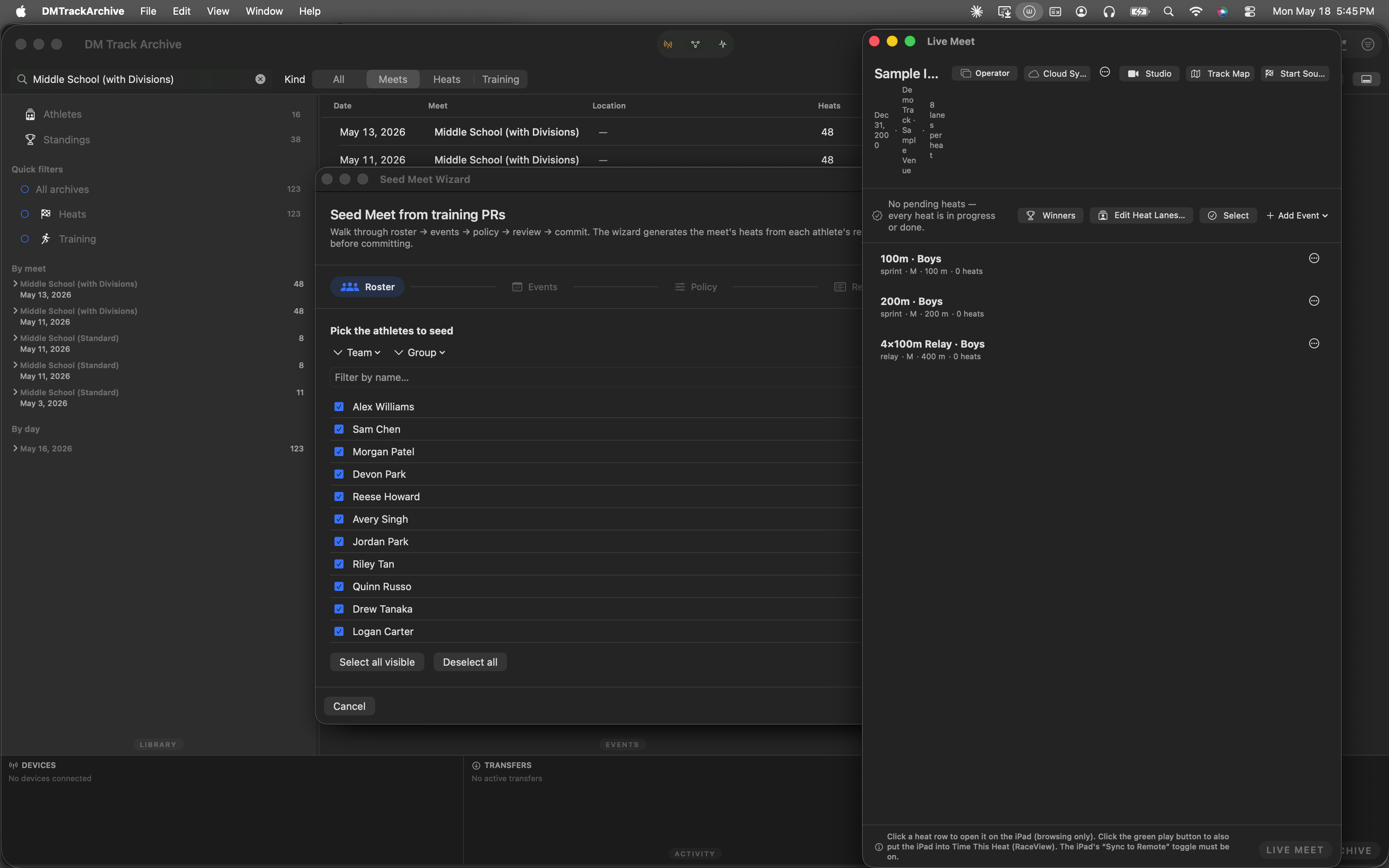
Meet-menu trigger hovered. The icon is intentionally small — meet metadata edits are infrequent, so the entry-point lives quietly.
Pick "Edit meet…"
Clicking the ellipsis opens a three-item menu: Edit meet… / New meet… / Delete meet…. The walkthrough highlights Edit meet so readers see exactly what to click.
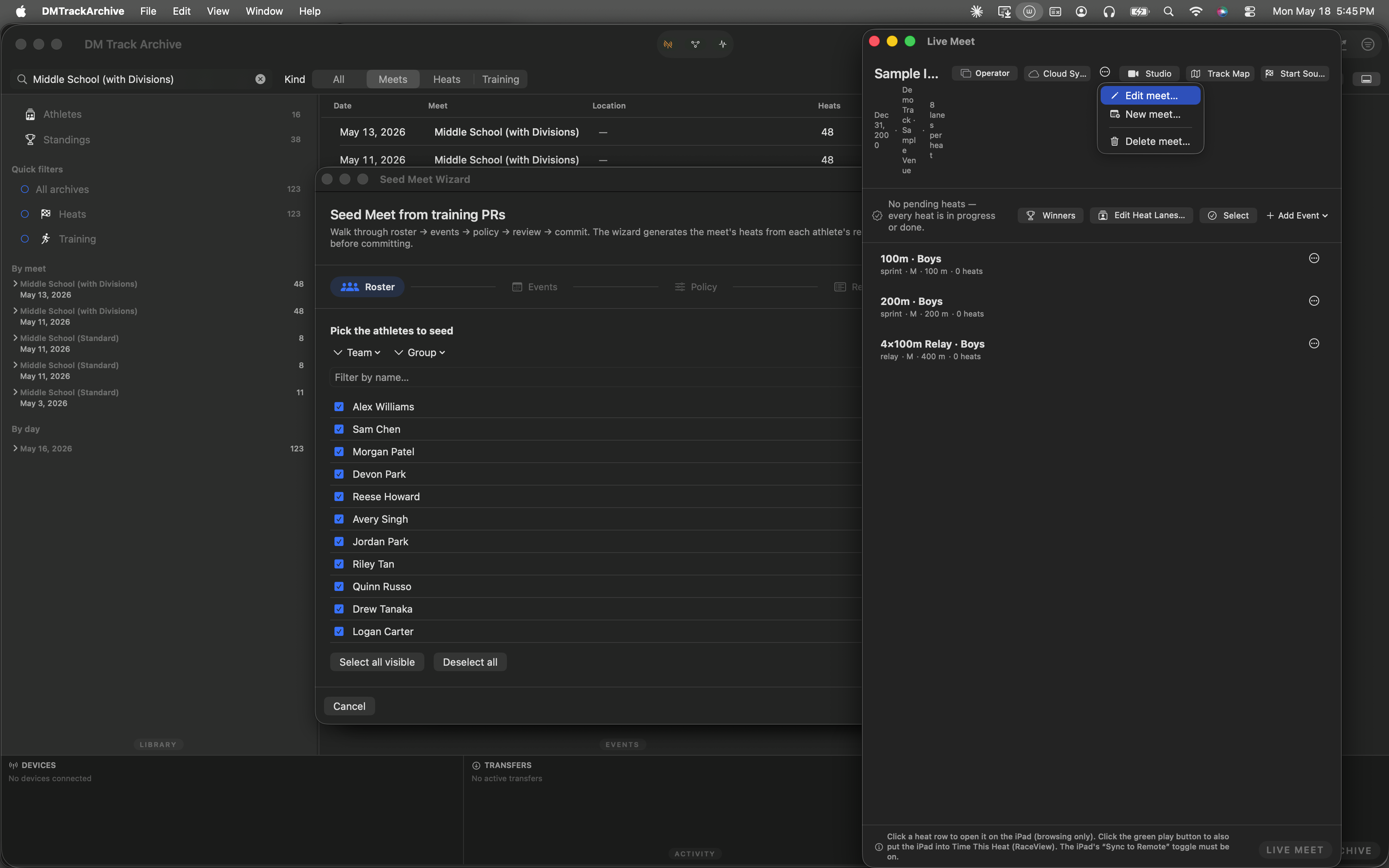
Meet menu open · Edit meet… highlighted in blue.
The Awards section
EditMeetSheet opens onto Meet metadata at the top — name, date, location, lanes per heat, team scoring, max events per athlete, field-event display unit. Scroll down to find the Awards section with four meet-level controls:
- Recipients per event — stepper, 0-8 inclusive. 3 is the default (top-3 medal). 0 disables awards for this meet.
- Award label — text field. "Medal" by default; can be "Ribbon", "Certificate", or anything the operator types.
- Award kind — menu picker: Medal / Ribbon / Certificate / Plaque / Custom.
- Relay awards — sub-policy picker: Both (4 medals + 1 plaque), Athletes only (4 medals), Team only (1 plaque).
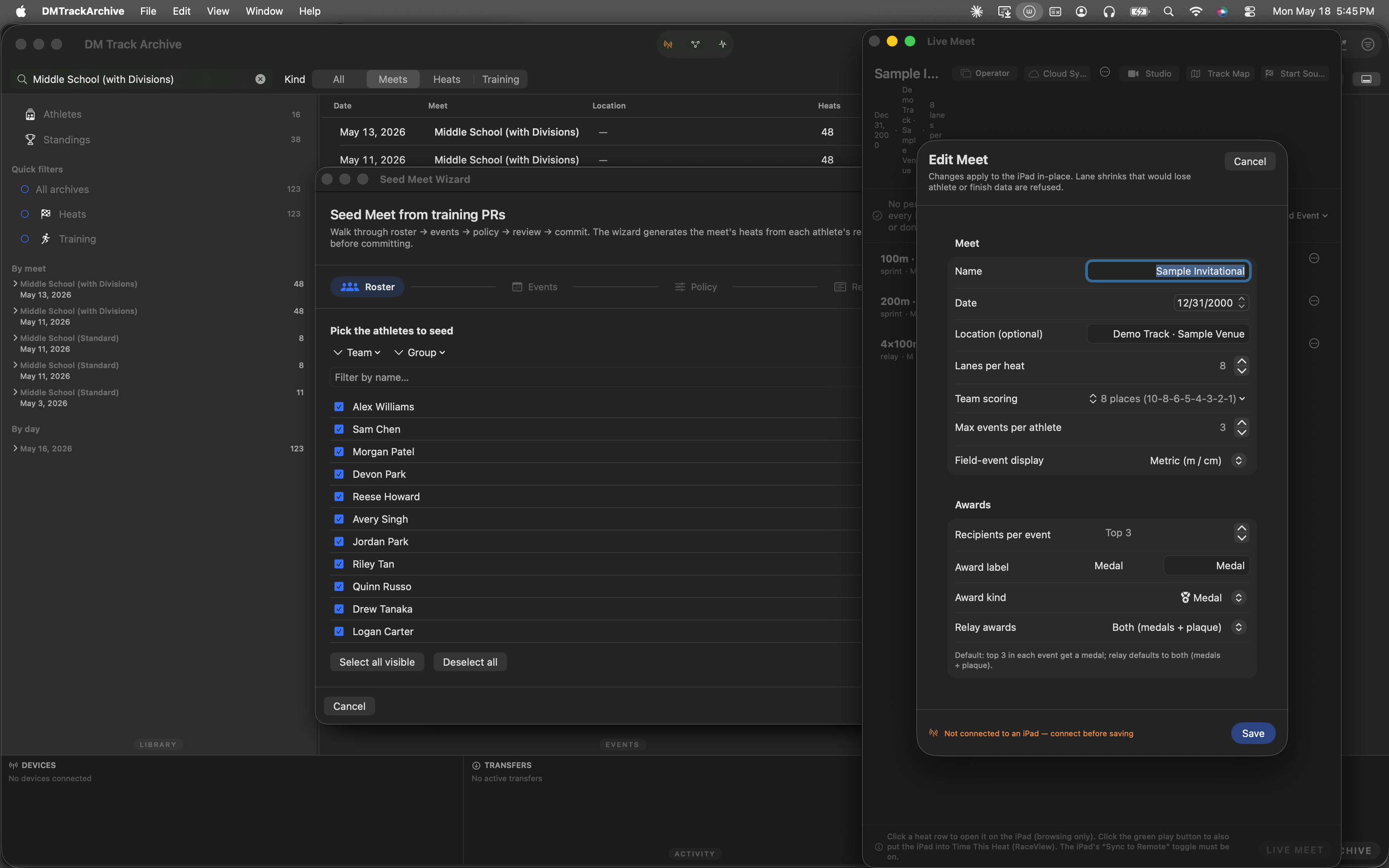
Awards section with the default top-3 medal · relay = both policy filled in.
awardsPolicy.groupOverrides keyed by EventGroup UUID.
Edit a value
The stepper alongside Recipients per event bumps the value up or down. Bumping to 4 changes the meet description to "Top 4" and the W2 ledger generator will award one extra medal per event on next run.
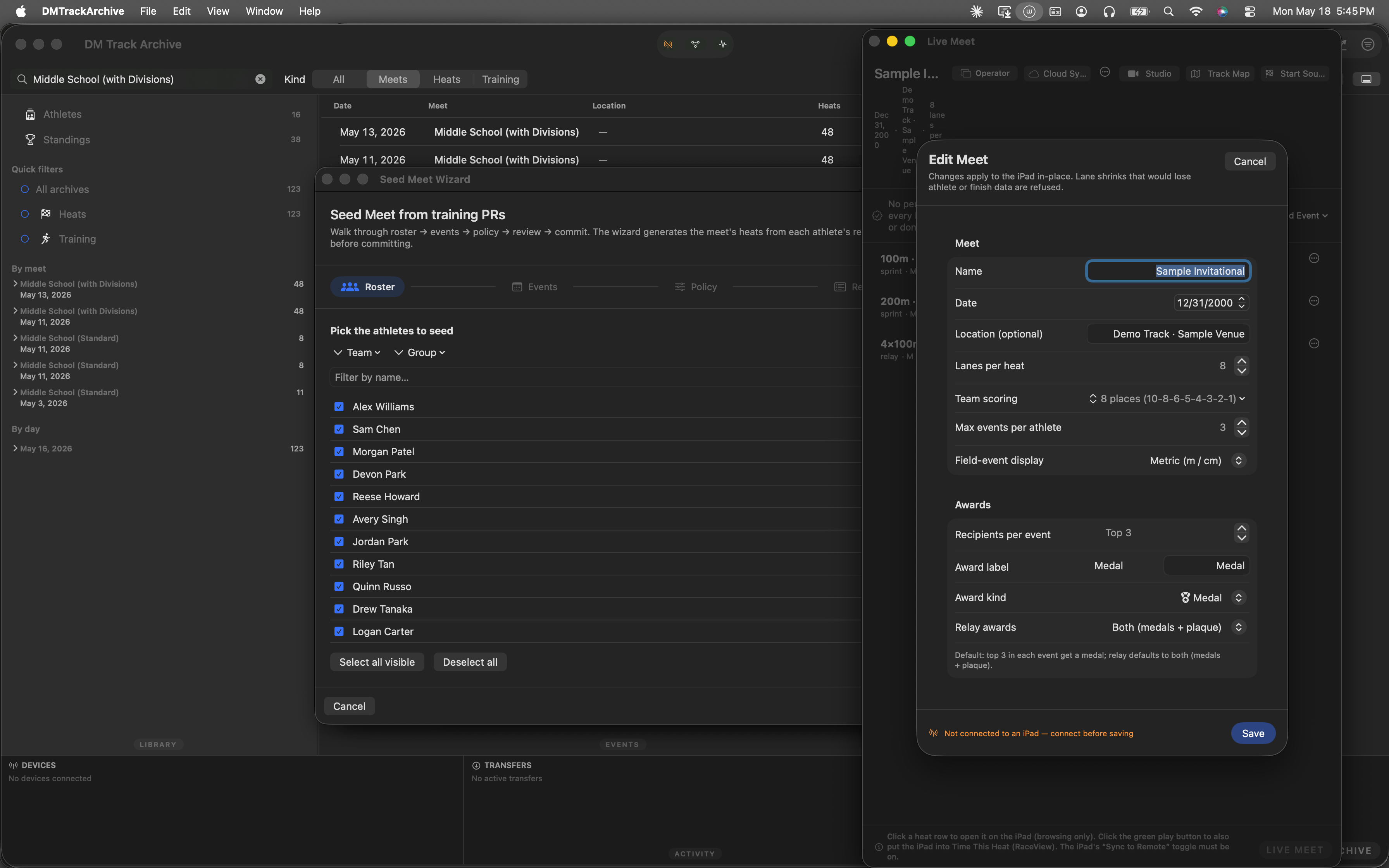
Stepper hovered. Click + to bump recipients, − to drop. Save at the bottom of the sheet writes sendUpdateMeet(awardsPolicy:) to the iPad.
Why the policy lives at meet-level
- One source of truth. The policy round-trips through
Meet.awardsPolicyData(SwiftData on iPad) andMeetStructureSnapshot.awardsPolicy(wire), so the Mac archive's Awards window + the W3 exporters + any future spectator surface all read the same value. - Override hierarchy. The W2 ledger generator resolves
eventOverridesfirst, thengroupOverrides, then the meet defaults. Coaches edit the meet-level policy once + override the rare event that's different. - Idempotent saves. The sheet only ships
sendUpdateMeet(awardsPolicy:)when the value differs from the snapshot. If the operator opens the sheet, scrolls, closes without editing — no wire chatter. - Graduated 2026-05-18. The
beta.awards.policyflag was removed alongside the other M-series/R1/Field-events graduations; the Awards section now always shows. R1 walkthrough documents the same graduation posture for the role chip. - This walkthrough is automated. The 6 screenshots above came from an XCUITest that drives the Window menu → Live Meet → meet menu → Edit Meet → Awards section against a deterministic fixture. The hover-then-screenshot pattern means every menu / control capture shows the target highlighted in macOS's native blue.
What W1 feeds
W2 — Awards Ledger: consumes the policy to compute the meet's awards from current standings. Full walkthrough →
W3 — Exports (planned): PDF awards list, Avery label sheets, per-team CSV. Inherits the policy automatically; no extra config.
W4 — Distribution tracking (planned): a checkbox column on the Awards window. Mark each medal as handed out with timestamp + initials.
W5 — Athlete-page integration (planned): athlete page gains a Medals section across every archived meet.